
MNTRA Instruments Arca
Professional music gear - detailed information and where to buy
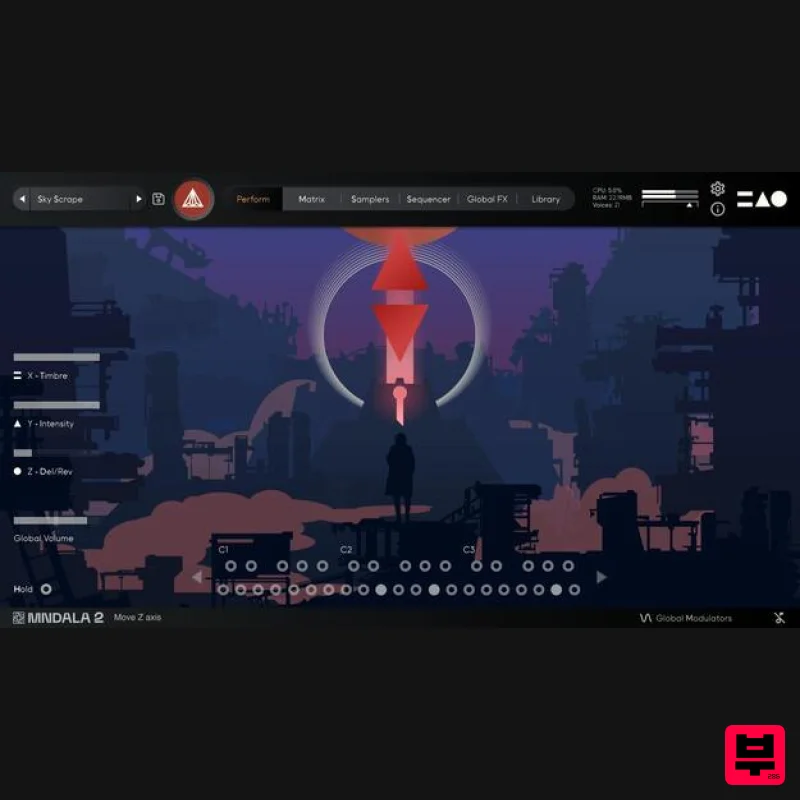
MNTRA Instruments
Arca
Product Info
* Prices may vary. Check retailer for current pricing and availability.
Product Description
- Interdimensional Strings Suite Inspired by Sci-fi and Ancient Cultures Arca is an exploration into the dark side of string textures. Inspired by MNTRA Instrument's love for sci-fi
- they set out to create a playground of multidimensional sound possibilities. Using a selection of ancient bowed world instruments as sources that were then deeply processed to extend their timbres to beyond the realms of imagination
- they have created a curated collection of dark
- cinematic soundscapes.Taking full advantage of the MNDALA 2 Sound Design Engine
- these unusual sources have been artfully sculpted to offer a wide variety of uniquely expressive sounds. Arca is built around their powerful 3-axis control system represented by a custom Perform view animation created for seamless intuitive live expression. Each preset is a unique performable instrument unto itself to be learned and explored. They simplified the manipulation of these sound-shaping parameters by creating global controls that are assignable to any MIDI sliders
- knobs
- or controllers. Map the controls once and you are ready to go without having to re-map them for each new MNDALA 2 instance. In addition to the curated sound worlds they created within Arca's many presets
- you can easily sculpt your own sonic landscapes using MNDALA 2's powerful non-linear Sound Design environment. Instrument Sample Maps String Trio Long MF String Trio Long F String Trio Short String Trio Glissandi Trill String Trio Up-Down Glissandi String Trio Scratch Cello Long Harmonics Cello Short Harmonics Kemenche Long Gut Kemenche Long Metal Kemenche Long Harmonics Kemenche Short Harmonics Morin Khuur Long Harmonics 1 Morin Khuur Long Harmonics 2 Morin Khuur Short Harmonics 1 Morin Khuur Short Harmonics 2 Nyckelharpa Long Nyckelharpa Short Creatively Processed Sample Maps Space Debris Long Tesla Coil Long Cosmic Critters Long Cyber Synth Long Hive Synth Long String Warp Long Solar Flare Long String Zap Short Cyber Crush Short Cyber Stab Short Wasp Strings Glissandi Trill Astral Wail Glissandi Trill Space Drive Up Down Glissandi Android Harmonizer Up Down Glissandi Grain Madness Up Down Glissandi Sonic Flange Up Down Glissandi Digital Scramble Scratch Features 85 Presets Up to 29 Round Robins Recorded at 32-bit 384khz resolution CPU-friendly in-DAW playback at industry- 24-bit 96khz resolution Plugin app and samples watermarked to you System Requirements VST/AU/AAX plugin for Windows & Mac OS (10.11+) including M1 Chip support 10.33 GB GB installed
- 15 GB recommended for setup Minimum 8GB of RAM and an i5 or better CPU required
- SSD drive recommended Supported by all popular VST/AU/AAX compatible DAWs Ryan Elder “In a sea of virtual instruments and sound libraries MNTRA's Instruments really stand out as creative and inspirational tools.” Chris Dudley “I own every MNTRA instrument and I can honestly say they’re all pushing a limit and filling a niche I didn’t even know was there.” Takeshi Furukawa “Brian and the MNTRA team have created truly unique instruments. The recording quality
- the musicality of the samples
- ease of use of the plug-in
- everything is top-notch.” Note: Huracan is used as an example. Mac 1. Download the MNDALA 2 Engine installer from your Plugin Boutique User Account > Extract the .zip archive > Launch the .pkg installer. 2. Click 'Continue'. 3. Click 'Continue'. 4. Click 'Agree'. 5. Click 'Continue'. 6. Click 'Install'. 7. Click 'Install Software'. 8. Click 'Close'. 9. Launch your DAW > Insert MNDALA 2 on a new instrument track > Click 'Create New Account' (If you have an existing MNTRA Instruments log in and skip to step 15). 10. Enter your email address and click 'Register'. 11. A MNTRA account has now been created > Click 'edit your password and account details' to create a password for your MNTRA account. 12. Enter your chosen password into the 'New password' box > Enter your password again into the 'Confirm new password' box > Click 'Save changes'. 13. Enter your MNTRA account details > Click 'Login'. 14. You are now logged into the MNDALA 2 Engine > Click 'Library' to continue to activate Huracan. 15. Click 'Add From Serial'. 16. Enter your serial number found within your Plugin Boutique User Account > Click 'Enter'. 17. Click 'OK'. 18. Click 'Install'. 19. Click 'OK' > Choose a location to store the instruments samples. 20. Huracan is now downloading (this may take a few minutes). 21. Click 'OK'. 22. Click 'OK' > Close and relaunch your DAW. 23. Insert MNDALA 2 on a new instrument track > Click 'Open Preset Browser'. 24. Select 'Huracan' then choose a preset. Huracan is now installed
- activated
- and ready to use. Windows 1. Download the MNDALA 2 Engine installer from your Plugin Boutique User Account > Extract the .zip archive > Launch the .exe installer. 2. Click 'More info'. 3. Click 'Run anyway'. 4. Accept the license agreement > Click 'Next'. 5. Click 'Next'. 6. Click 'Next'. 7. Click 'Next'. 8. Click 'Install'. 9. Click 'Finish'. 10. Launch your DAW > Insert MNDALA 2 on a new instrument track > Click 'Create New Account' (If you have an existing MNTRA Instruments log in and skip to step 15). 11. Enter your email address and click 'Register'. 12. A MNTRA account has now been created > Click 'edit your password and account details' to create a password for your MNTRA account. 13. Enter your chosen password into the 'New password' box > Enter your password again into the 'Confirm new password' box > Click 'Save changes'. 14. Enter your MNTRA account details > Click 'Login'. 15. You are now logged into the MNDALA 2 Engine > Click 'Library' to continue to activate Huracan. 16. Click 'Add From Serial'. 17. Enter your serial number found within your Plugin Boutique User Account > Click 'Enter'. 18. Click 'OK'. 19. Click 'Install'. 20. Click 'OK' > Choose a location to store the instruments samples. 21. Huracan is now downloading (this may take a few minutes). 22. Click 'OK'. 23. Click 'OK' > Close and relaunch your DAW. 24. Insert MNDALA 2 on a new instrument track > Click 'Open Preset Browser'. 25. Select 'Huracan' then choose a preset. Huracan is now installed
- activated
- and ready to use.
Additional Information
About the MNTRA Instruments Arca
Experience the quality and tone that makes the MNTRA Instruments Arca a popular choice for musicians.
Why Choose the MNTRA Instruments Arca?
- •Authentic MNTRA Instruments craftsmanship and design
- •Versatile sound suitable for multiple musical genres
- •Professional build quality and reliable performance
- •Part of MNTRA Instruments's respected Virtual Instruments lineup
Compare & Explore
Browse our complete selection of MNTRA Instruments instruments or explore other Virtual Instruments options. Use our comparison tools to find the perfect match for your musical style and budget.
Similar Products
Boom SWAMPS - 3D Surround
Virtual Instruments
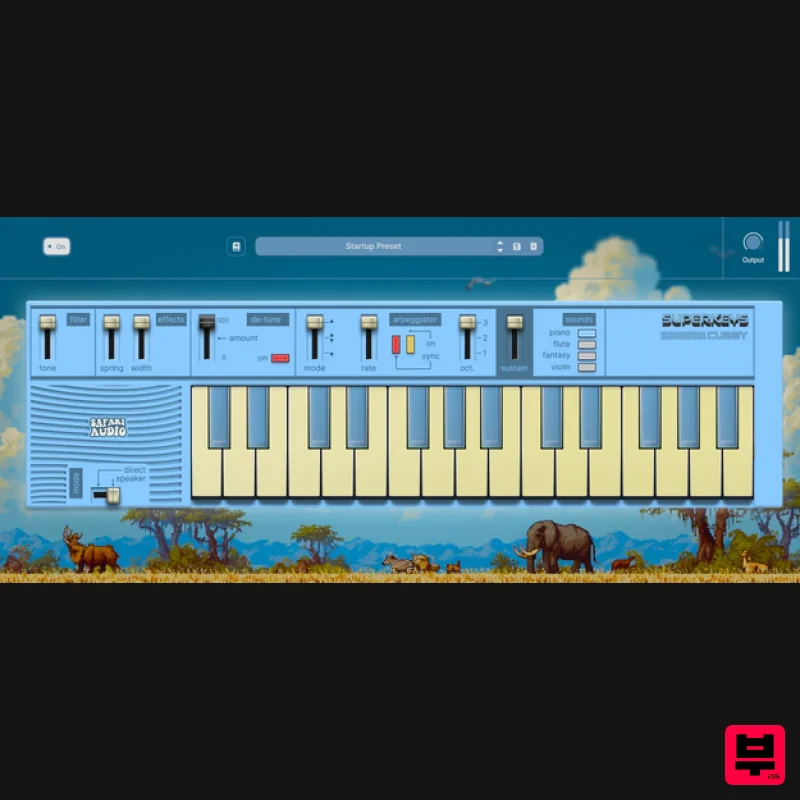
Safari Audio Cubby
Virtual Instruments
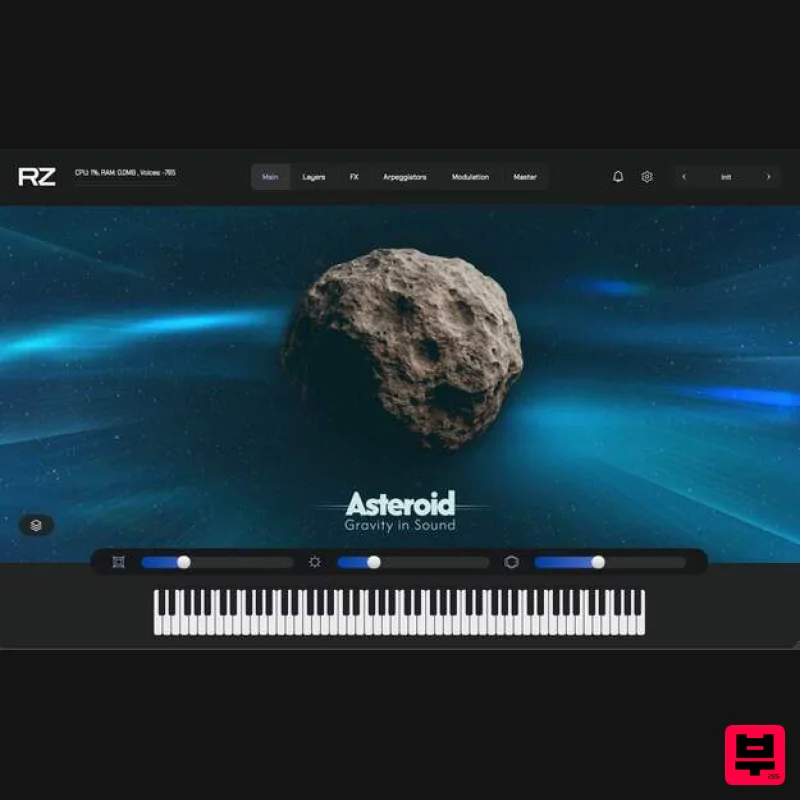
ZAK Sound Asteroid
Virtual Instruments
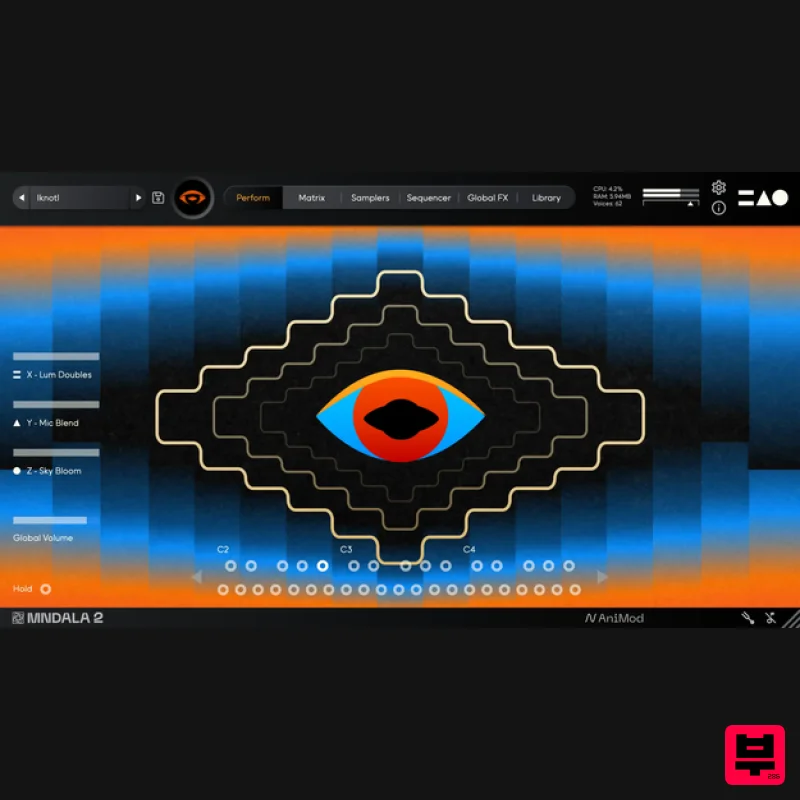
MNTRA Instruments Nagual
Virtual Instruments

UJAM BEAUTYFLUTE Pro
Virtual Instruments
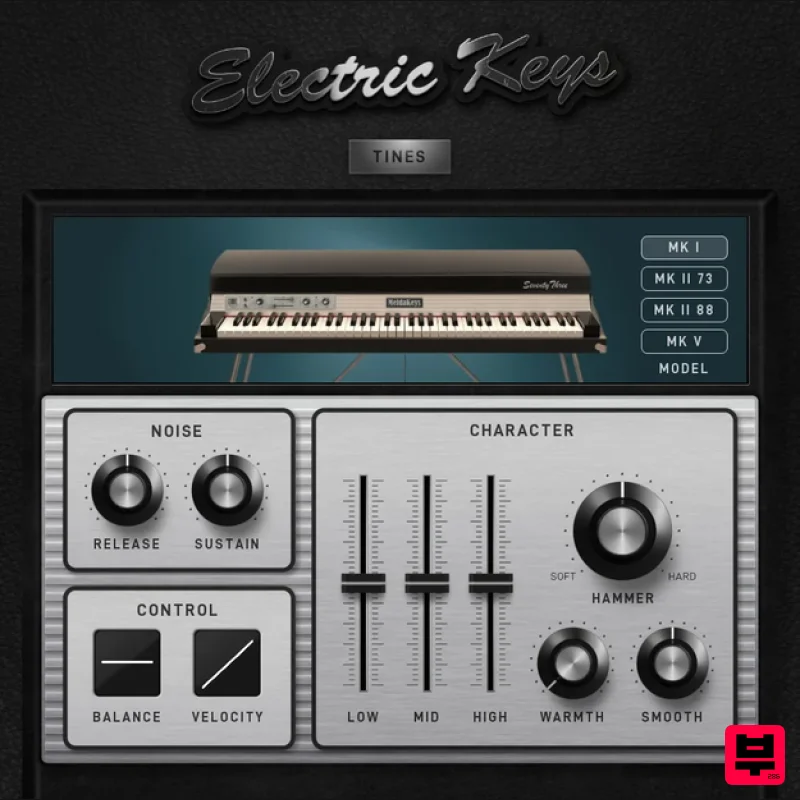
MeldaProduction Electric Keys - Tines
Virtual Instruments
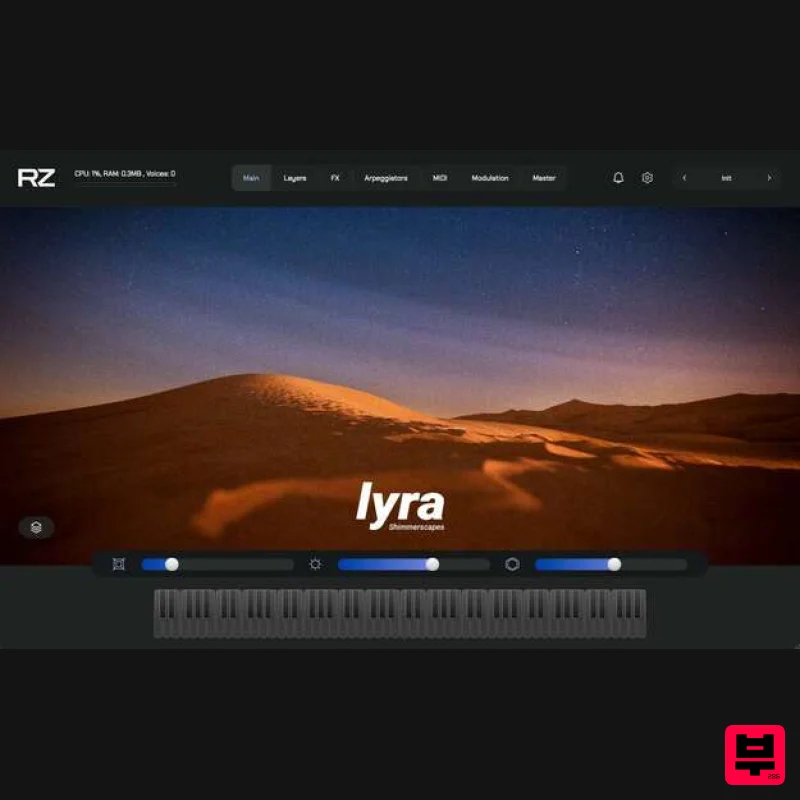
ZAK Sound Lyra
Virtual Instruments
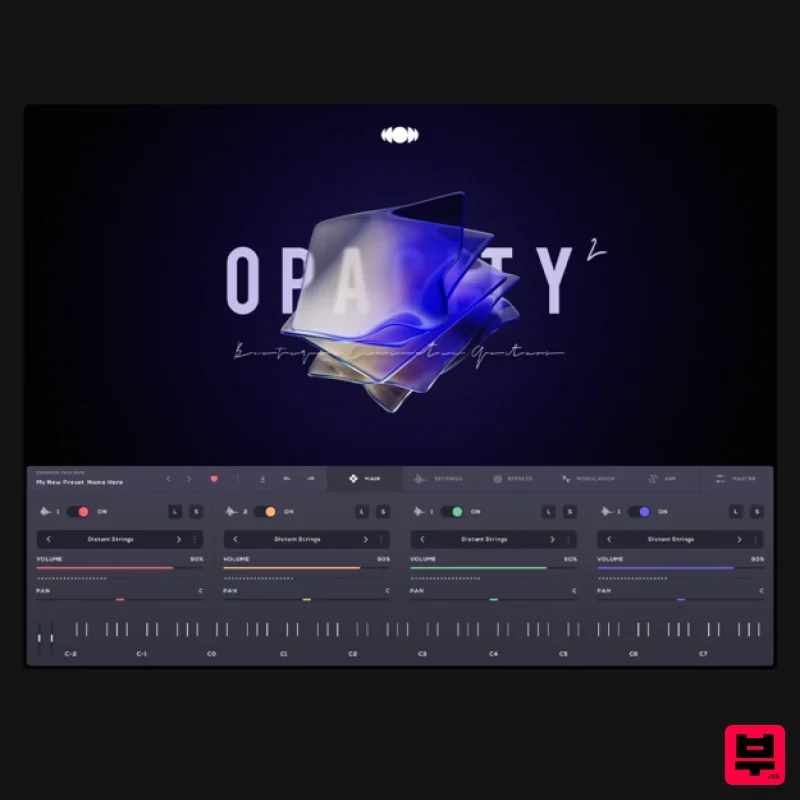
Audiomodern Opacity 2: Soundbox Instrument
Virtual Instruments

