
Softube Tube-Tech Blue Tone
Professional music gear - detailed information and where to buy
Softube
Tube-Tech Blue Tone
Product Info
* Prices may vary. Check retailer for current pricing and availability.
Product Description
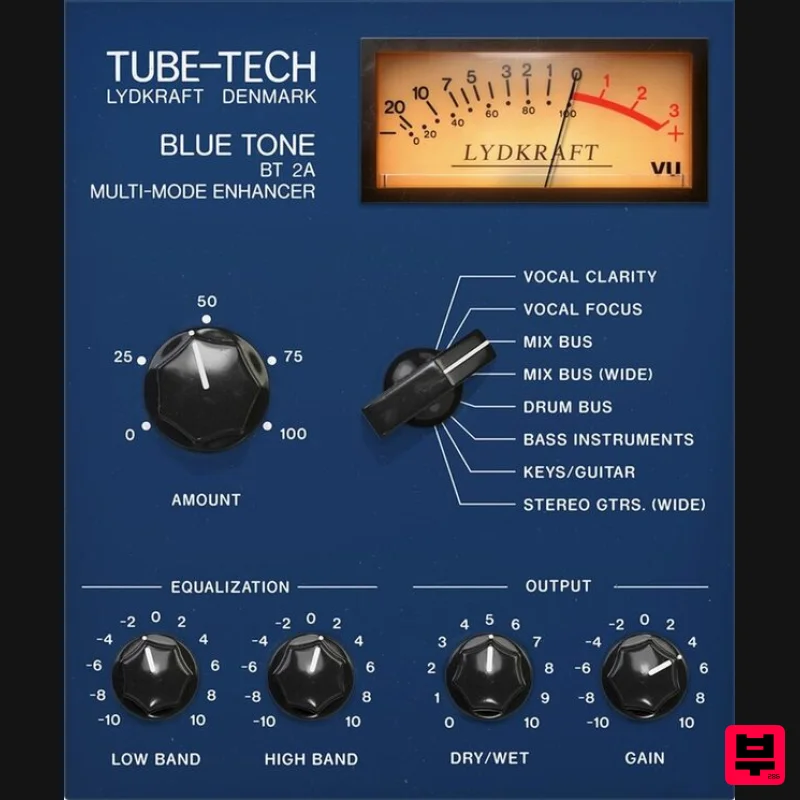
- True-Blue Sound With Lightning-Fast Workflow Blue Tone packs an incredible amount of processing into a simple interface. Behind a few easy-to-dial-in knobs lies the powerful multiband compression of Tube-Tech 2B and the legendary Pultec-style EQs Tube-Tech PE 1C and ME 1B. Blue Tone is designed for getting amazing results quickly and easily without needing to start from zero and dial in multiple parameters in multiple plug-ins on each bus or channel. Eight unique modes let users quickly handle critical mix and bus tasks that range from the low-end EQ trick to classic vocal compression sounds
- multiband widening
- fattening up of tracks
- and more. All that is needed is to select a mode and dial the amount to get the sound the pros use within seconds. Simple and fast. Authentic and powerful. Get the best of Softube and Tube-Techdistilled into one easy-to-use plug-in. Hit the perfect note with Tube-Tech Blue Tone by Softube. Features NEW: Tube-Tech Blue Tone Renowned Tube-Tech sound with easy-to-use controls The authentic
- officially licensed sound of Tube-Tech Featuring the multiband compression of Tube-Tech 2B and the flexible
- musical equalization of PE 1C and ME 1B Eight sound-enhancing modes: Vocal Clarity Vocal Focus Mix Bus Mix Bus (Wide) Drum Bus Bass Instruments Keys/Guitar Stereo Guitars (Wide) System Requirements macOS Big Sur 11
- Monterey 12
- Ventura 13 Windows 10 (64-bit)
- Windows 11 Softube account iLok account Computer with AU
- VST3 and/or AAX compatible DAW host software Internet access (for downloading installers and managing licenses) Important Note: Spring Reverb is used as the example Installation Video <iframe frameborder="0" height="315" src="https://www.youtube.com/embed/8bY_0kx5bzw" width="560"></iframe> Note: Before starting the installation
- you are required to create a FREE iLok user ID and install the iLok License Manager. Please take a look at this Help Centre Guide for more information. Registration 1. Click 'DOWNLOAD' in your Plugin Boutique Account. This will direct you to the Softube login page. 2. Enter your details > tick the Privacy Policy box > click 'Sign up' to create an account. (If you already have a Softube account
- please log in and skip to step 5). 3. Go to your email account > find the Softube registration email > click 'ACTIVATE MY ACCOUNT'. (Your account has now been successfully created) 4. Go back to www.softube.com (you should now be logged in) > click 'MY ACCOUNT'. 5. Click 'REGISTER LICENSE'. 6. Enter the License Code (referred to as serial number on our site) found in your Plugin Boutique User Account > click 'REGISTER LICENSE'. 7. Click 'GO FOR IT!'. Your product is now registered. Mac 1. On the My Products page
- click 'MAC' > you will be directed to the Mac Installation page. 2. Click 'HERE (highlighted in orange) to start downloading Softube Central. 3. Once it has downloaded
- open the Softube Central PKG file > click 'Continue'. 4. Read through the Software License Agreement > click 'Continue'. 5. Click 'Agree'. 6. Click 'Install'. 7. Enter your password > click 'Install Software'. 8. Click 'Close'. 9. Open Softube Central > click 'INSTALL' to install all the necessary iLok licensing components. (This may take a few minutes) 10. Sign in to your Softube account. 11. Your product will now be displayed in Softube Central. Please note: if it says 'DISCONNECTED' at the top of the window
- please go to the settings and click 'RESTART'
- close Softube Central and then open it again. Your software is now activated and ready for use within your DAW. Windows 1. On the My Products page
- click 'WINDOWS' > you will be directed to the Windows Installation page. 2. Click 'here' (highlighted in orange) to start downloading Softube Central. 3. Once it has downloaded
- open the Softube Central download > click 'Yes'. 4. Read through the Software License Agreement > click 'I Agree'. 5. Softube Central will now open > click 'Install' to download the necessary iLok licensing components. 6. Please wait for the iLok licensing components to download. (This may take up to 5 minutes). 7. Click 'Yes' > the Softube Installer Helper Setup will now run. 8. Click 'Next >'. 9. Read through the License Agreement > click 'I Agree'. 10. Click 'Next >'. 11. Choose the VST file path (we recommend the default location) > click 'Install'. 12. Click 'Finish'. 13. Softube Central has now been successfully installed > click 'START'. 14. Sign in to your Softube account. 15. Click 'INSTALL'. Your software is now activated and ready for use within your DAW.
Additional Information
About the Softube Tube-Tech Blue Tone
Experience the quality and tone that makes the Softube Tube-Tech Blue Tone a popular choice for musicians.
Why Choose the Softube Tube-Tech Blue Tone?
- •Authentic Softube craftsmanship and design
- •Versatile sound suitable for multiple musical genres
- •Professional build quality and reliable performance
- •Part of Softube's respected Multi Effect lineup
Compare & Explore
Browse our complete selection of Softube instruments or explore other Multi Effect options. Use our comparison tools to find the perfect match for your musical style and budget.
Similar Products
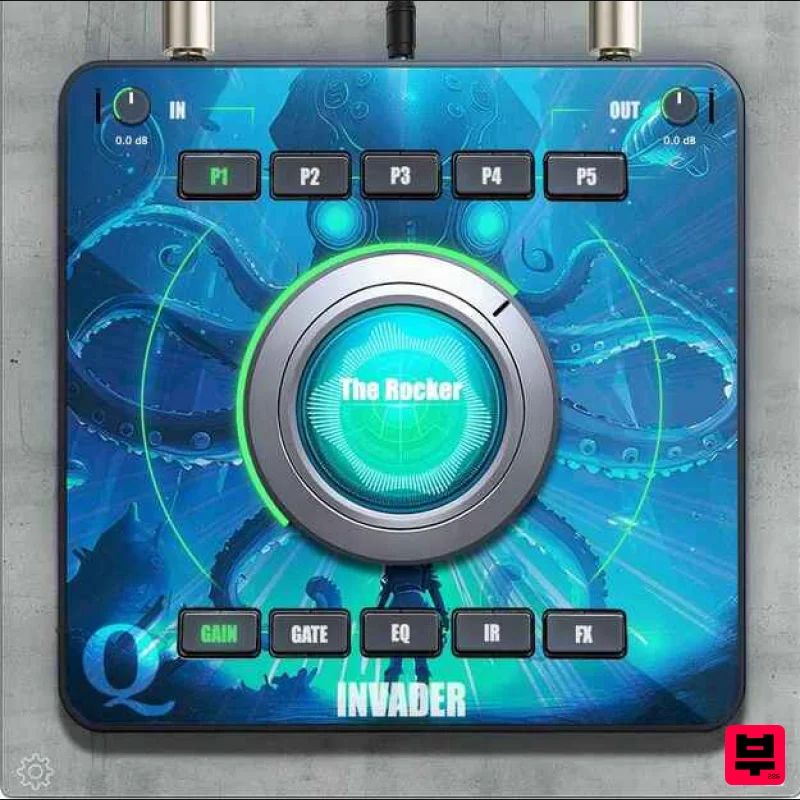
Quantum DSP Q-Series Invader
Multi Effect
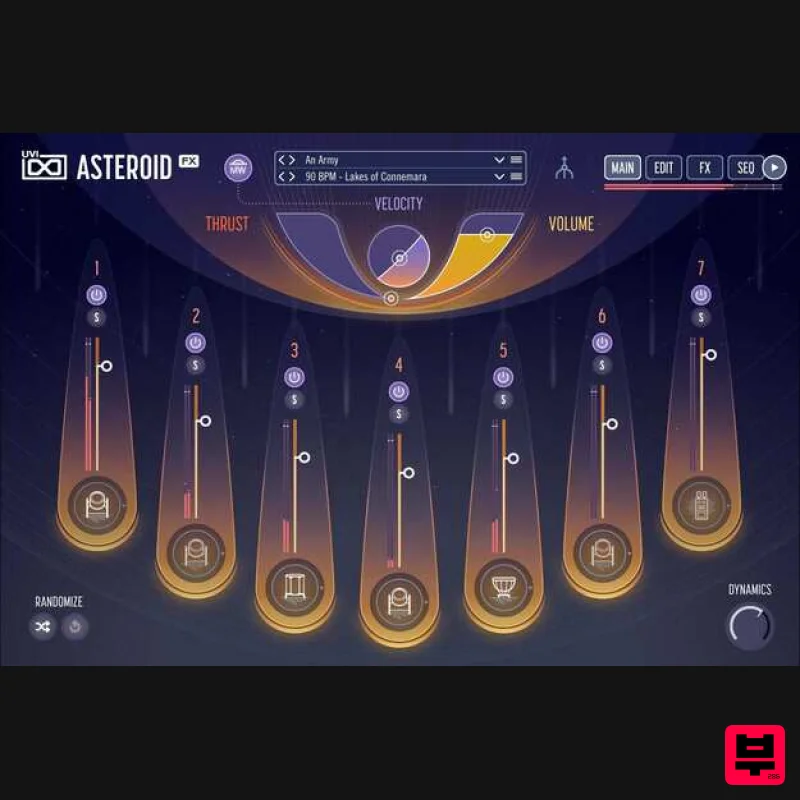
UVI Asteroid
Multi Effect
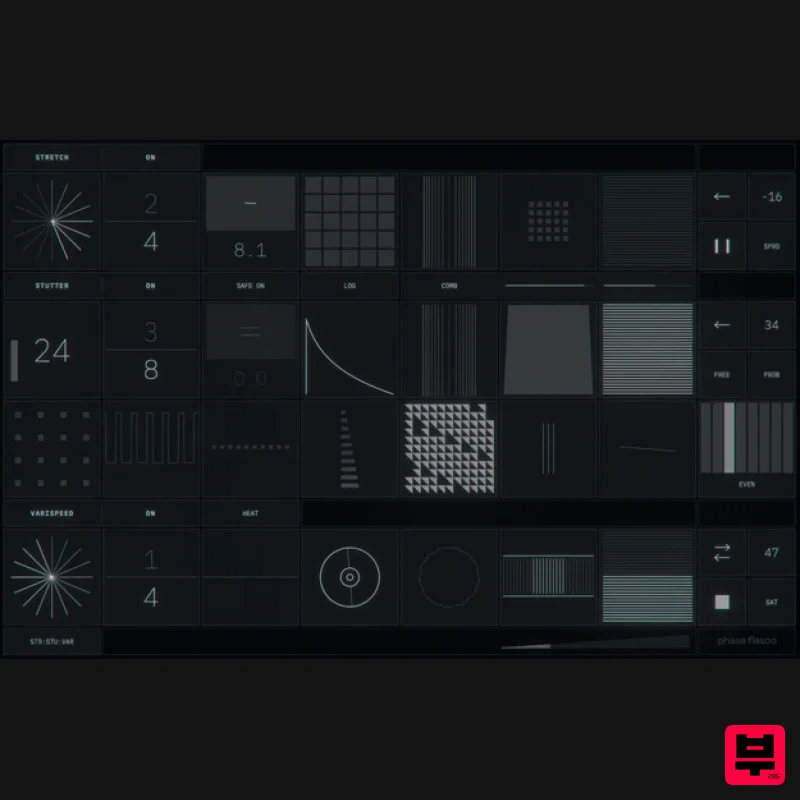
Jonas Eriksson Tape Fiasco
Multi Effect
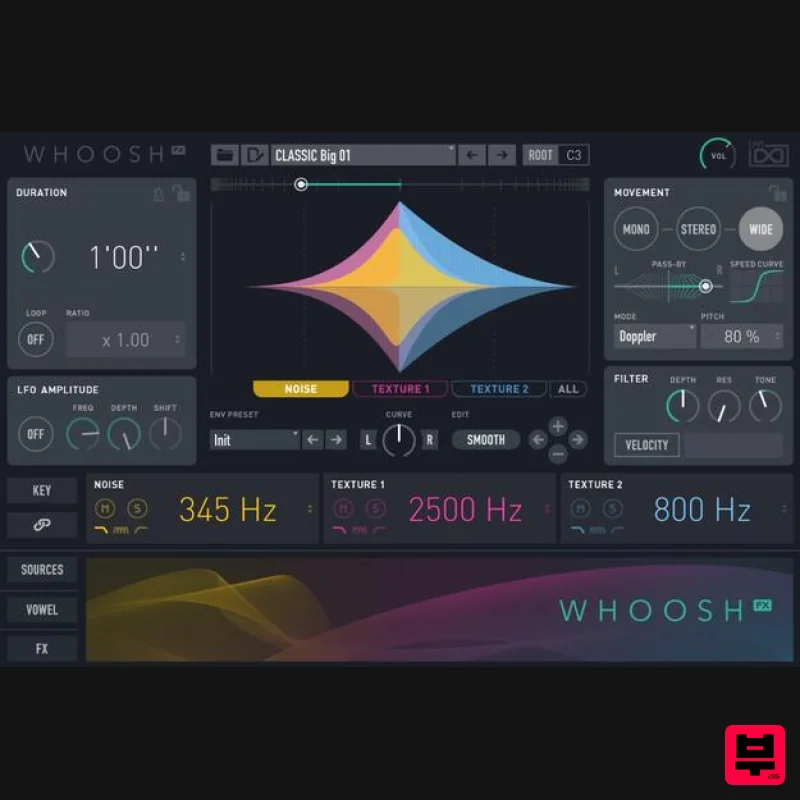
UVI Whoosh FX
Multi Effect
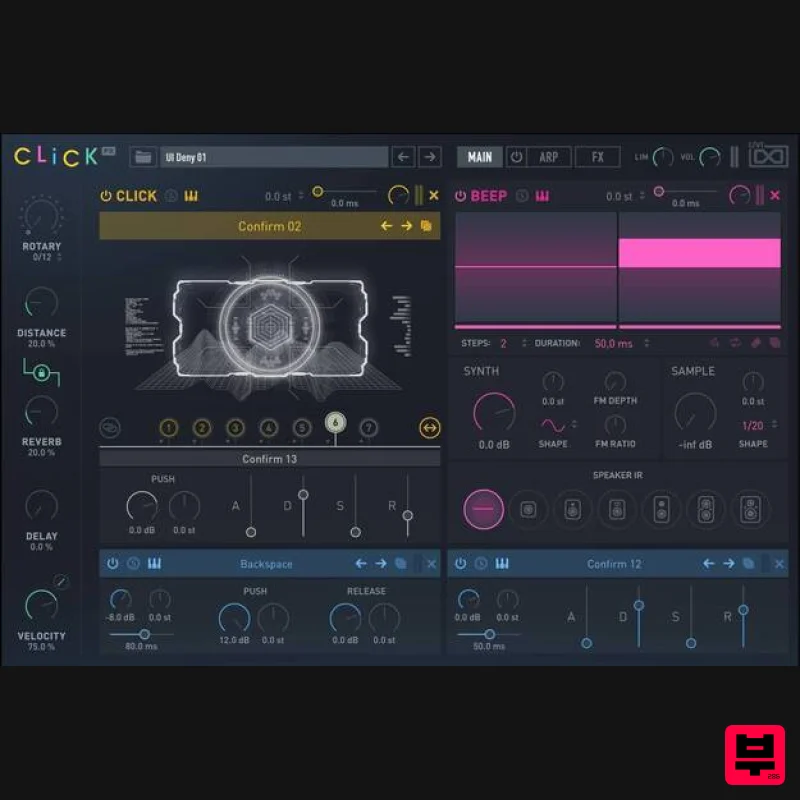
UVI Click
Multi Effect
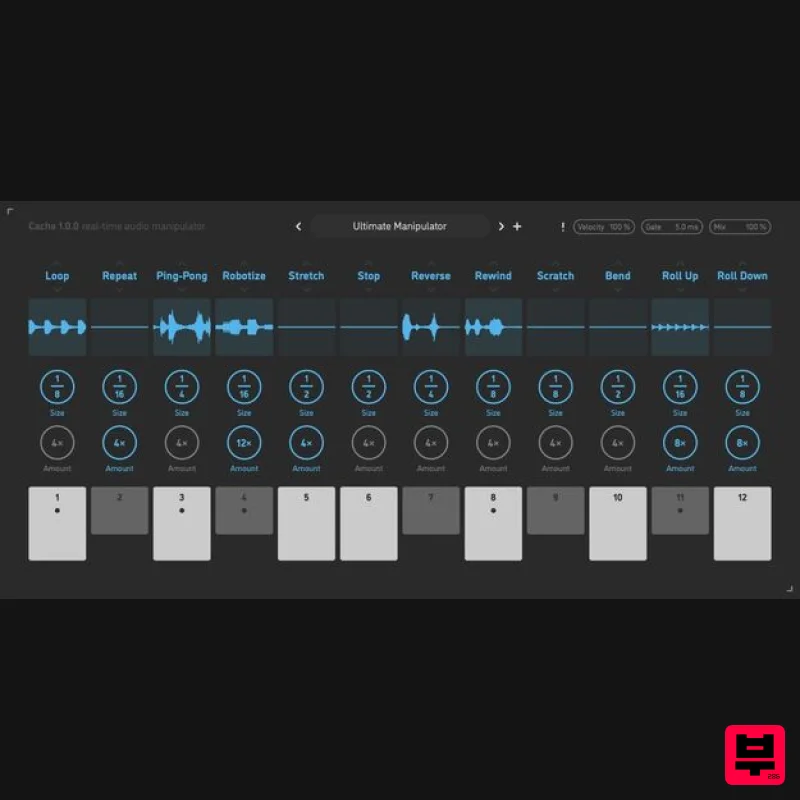
Sinevibes Cache
Multi Effect
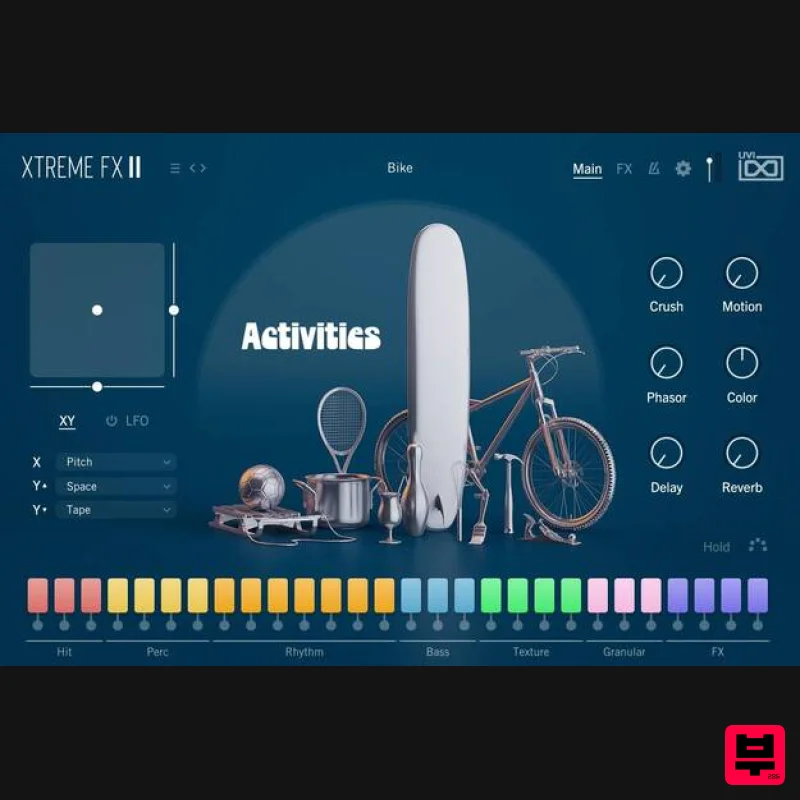
UVI Xtreme FX 2
Multi Effect
Jungle Audio DUKE
Multi Effect

