
AudioThing Things – Texture
Professional music gear - detailed information and where to buy
AudioThing
Things – Texture
Product Info
* Prices may vary. Check retailer for current pricing and availability.
Product Description
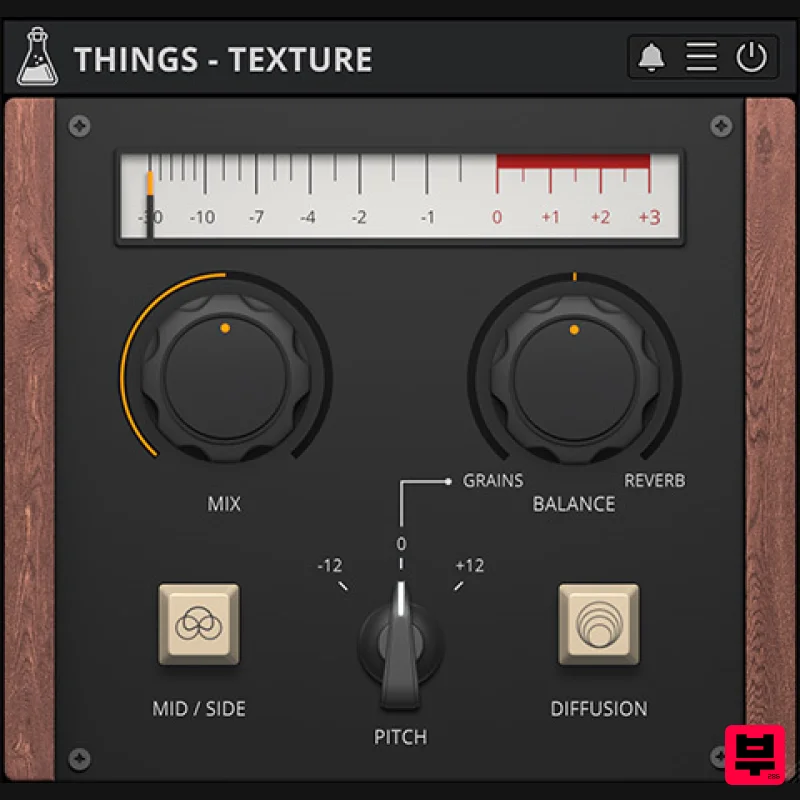
- Granular Reverb 'Things' is going to be a series of plugins covering a wide range of effects
- focused on sound design and creativity. The first in the series is Texture
- an easy to use granular reverb with pitch shifting and mid/side mode. Texture can transform any sound into an ambient soundscape
- or add that drone vibe to your tracks. This plugin was inspired by the techniques used in the soundtrack and sound design of the award-winning indie game The Swapper. Mid/Side What is Mid / Side? In a stereo signal
- the Mid channel is considered the centre and contains both Left and Right channels. Boosting the Mid channel results in a more mono sound. The Side channel instead contains the difference between the Left and Right channels. Boosting the Side channel results in a more spacious or wider sound. Mid / Side Mode When the Mid and Side mode button is engaged
- the granular effect is applied only to the Side part of the input signal. The Mid is instead attenuated
- creating a special stereo width effect. The reverb is always applied on both Mid and Side parts. Features Granulator + Reverb Mid/Side Operation Granular Pitch Shifting Resizable Window System Requirements Windows Windows 7-11 2GHz CPU
- 4 GB RAM VST2
- VST3
- CLAP (64-bit) Mac OS X 10.9 – macOS 13 Apple Silicon (M chips) Native (Universal 2 Binary) 2GHz CPU
- 4 GB RAM VST2
- VST3
- CLAP (64-bit) Universal 2 Binary Note: Wave Box is used as the example. Windows 1. Visit the AudioThing Account Signup Page and enter your personal details to set up an account. Click the Verification and "I've read and agree to the Privacy Policy" > Click Sign Up. Note: If you already have an existing AudioThing account
- Login here and skip to step 3 of the installation process. 2. A confirmation email will now be sent to your registered email > click the link within the email to activate your account and Login here. 3. Once logged into your account
- visit the Redeem Page and enter Redeem Code from your Plugin Boutique User Account into the box > Click 'Redeem'. 4. Download the PC installer and the Offline Activation License. Note: Save the Offline Activation License to a memorable location on your computer for activating the software. 5. Double-click the downloaded .zip folder to extract its contents. 6. Double-click the extracted .exe file > click 'I accept the agreement and click 'Next'. 7. Click 'Next'. 8. Select the components that you wish to install > Click ‘Next’. 9. Click ‘Next’. 10. Click 'Install'. 11. Click ‘Finish’. Offline Activation 1. Open Wave Box inside of your DAW > Click 'Offline'. 2. Click 'Load Licence File' and navigate to your Offline Activation License. 3. Click the X to close the box. The software is now activated and ready to use inside your DAW! Online Activation 1. Open Wave Box inside of your DAW > Click 'Online'. 2. Enter your AudioThing email and password > Click 'Log In'. 3. Click the X to close the box. The software is now activated and ready to use inside your DAW! Mac 1. Visit the AudioThing Account Signup Page and enter your personal details to set up an account. Click the Verification and "I've read and agree to the Privacy Policy" > Click Sign Up. Note: If you already have an existing AudioThing account
- Login here and skip to step 3 of the installation process. 2. A confirmation email will now be sent to your registered email > click the link within the email to activate your account and Login here. 3. Once logged into your account
- visit the Redeem Page and enter Redeem Code from your Plugin Boutique User Account into the box > Click 'Redeem'. 4. Download the MAC installer and the Offline Activation License. Note: Save the Offline Activation License to a memorable location on your computer for activating the software. 5. Double-click the downloaded .dmg folder to extract its contents > Double-click the .pkg file to run the installer 6. Click 'Continue'. 7. Click ‘Continue’. 8. Click 'Continue'. 9. Click ‘Agree’. 10. Select the components you would like to install > Click 'Continue'. 11. Click ‘Install’. 12. Click 'Close'. Offline Activation 1. Open Wave Box inside of your DAW > Click 'Offline'. 2. Click 'Load Licence File' and navigate to your Offline Activation License. 3. Click the X to close the box. The software is now activated and ready to use inside your DAW! Online Activation 1. Open Wave Box inside of your DAW > Click 'Online'. 2. Enter your AudioThing email and password > Click 'Log In'. 3. Click the X to close the box. The software is now activated and ready to use inside your DAW!
Additional Information
About the AudioThing Things – Texture
Discover the distinctive sound and feel of the AudioThing Things – Texture, a standout choice among Reverb.
Why Choose the AudioThing Things – Texture?
- •Authentic AudioThing craftsmanship and design
- •Versatile sound suitable for multiple musical genres
- •Professional build quality and reliable performance
- •Part of AudioThing's respected Reverb lineup
Compare & Explore
Browse our complete selection of AudioThing instruments or explore other Reverb options. Use our comparison tools to find the perfect match for your musical style and budget.
Similar Products
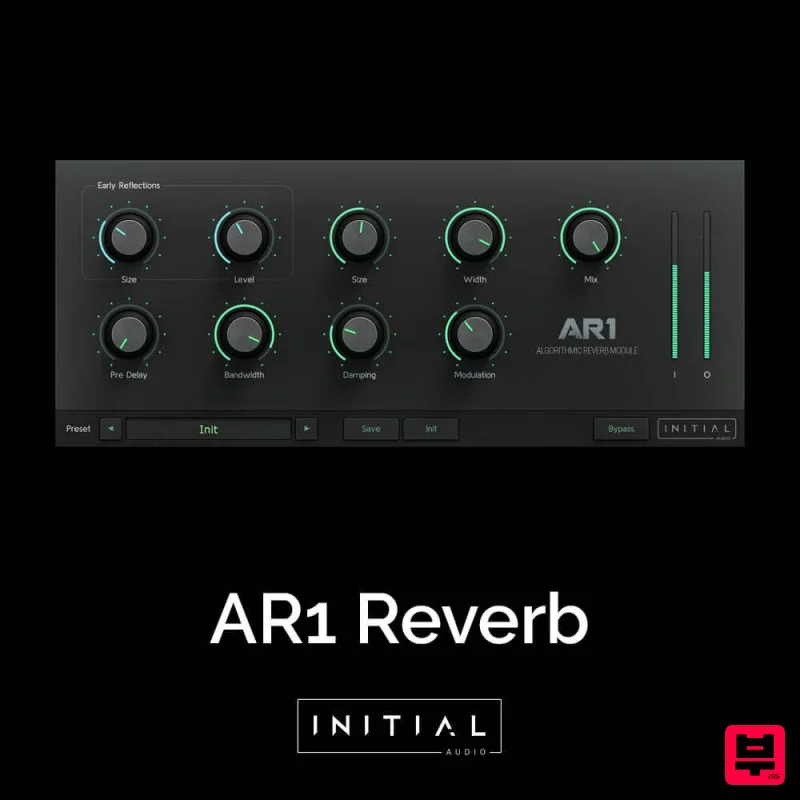
Initial Audio AR1 Reverb
Reverb
$30
Quality Algorithmic Reverb Plugin AR1 is an algorithmic reverb plugin designed to sound great on all types of...
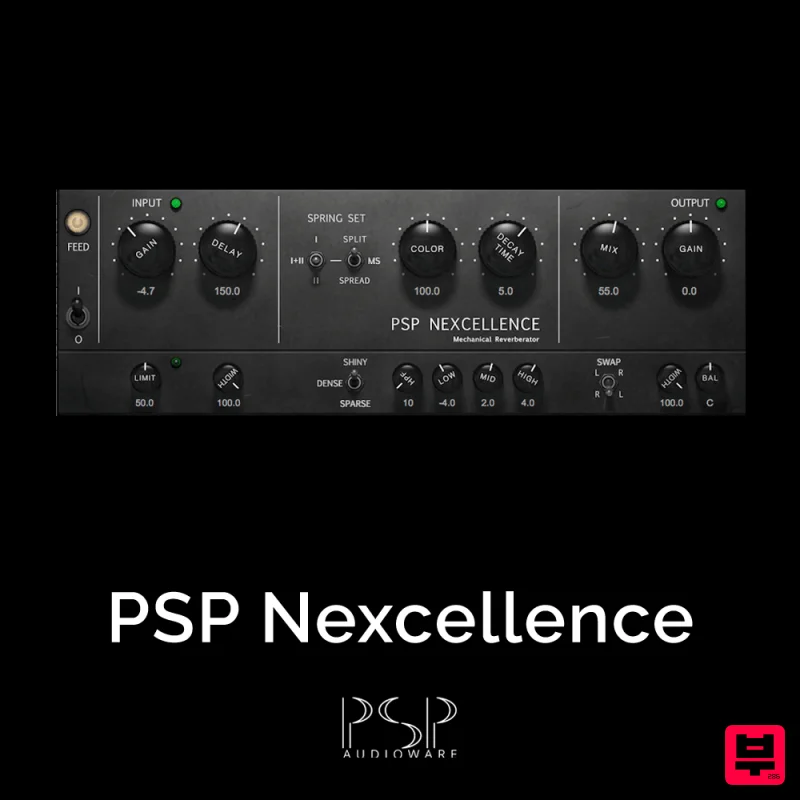
PSP Audioware PSP Nexcellence
Reverb
$30
PSP Nexcellence is a rich-sounding, spring reverb emulation inspired by and modeled after classic “necklace-type”...
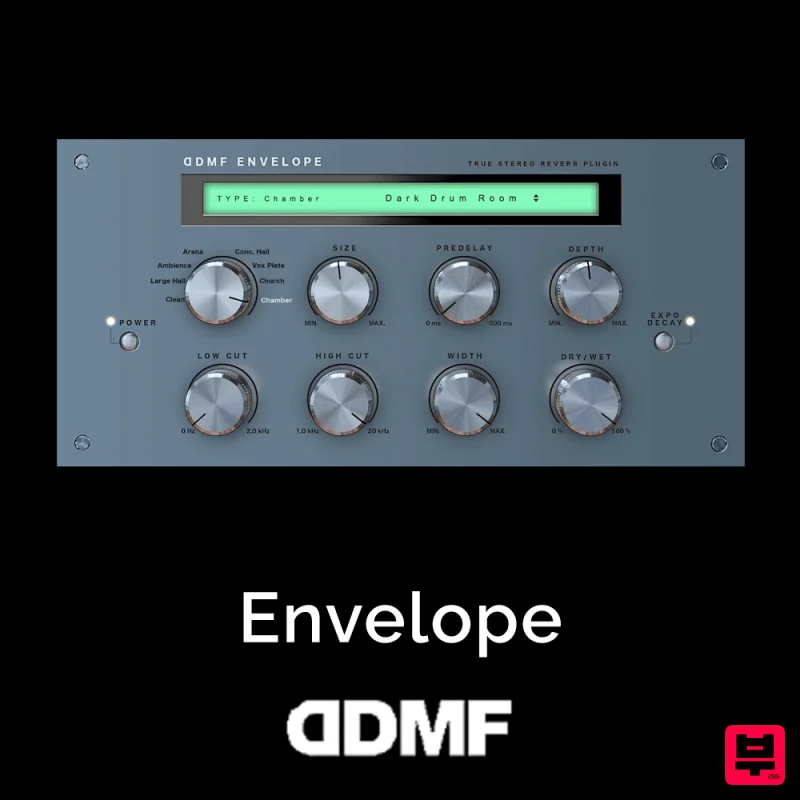
DDMF Envelope
Reverb
$30
Envelope is a true stereo reverb plugin featuring 8 different room simulations, all of which can be adjusted for size,...
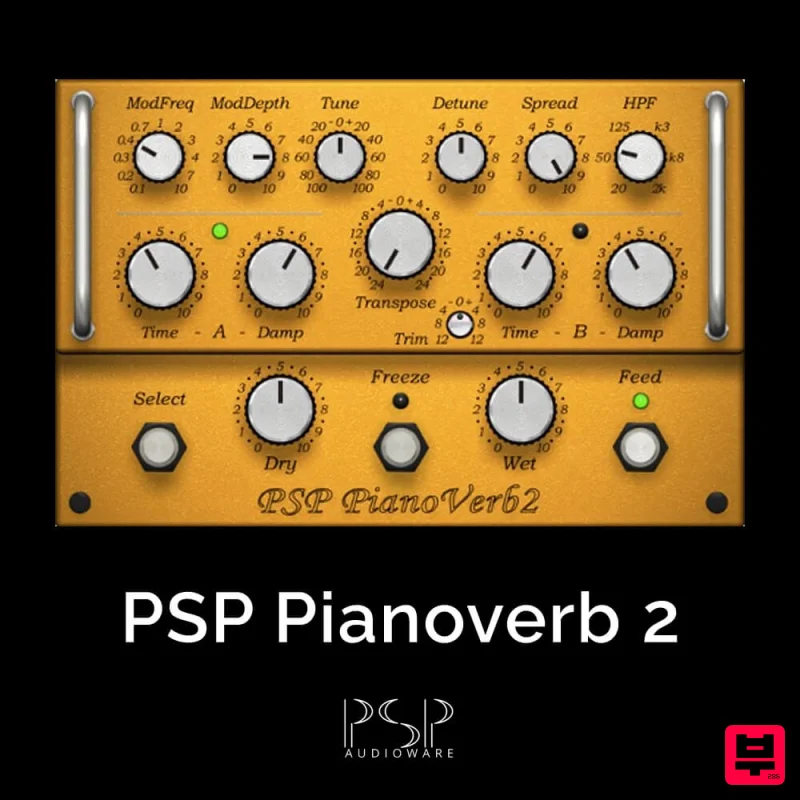
PSP Audioware PSP Pianoverb 2
Reverb
$30
PSP PianoVerb2 is a redesigned and improved creative resonant reverb plug-in based on our famous and beloved freeware...
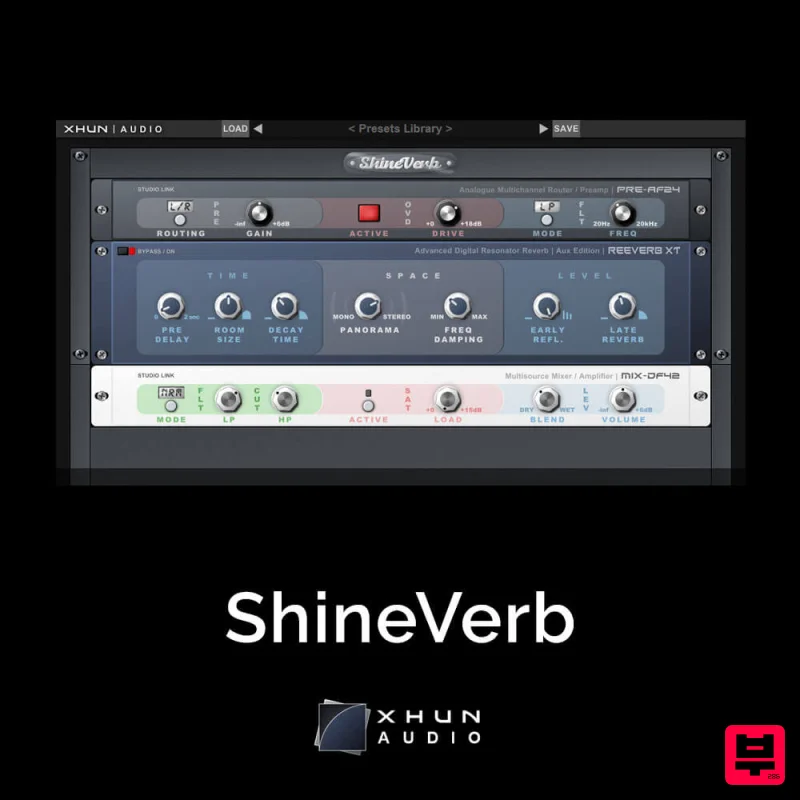
XHUN Audio ShineVerb
Reverb
$30
Creative Reverb Processor ShineVerb is a creative tool specially designed for reverberation, spatialization and sound...
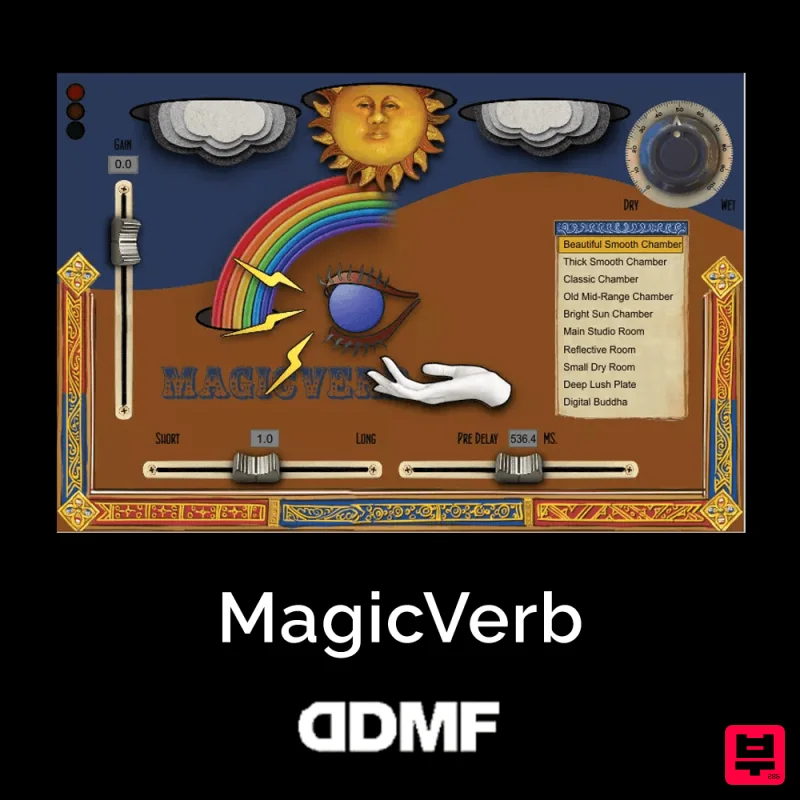
DDMF MagicVerb
Reverb
$30
MagicVerb is the latest result of the collaboration between MagicDeathEye aka Ian Sefchick and DDMF. This journey was...
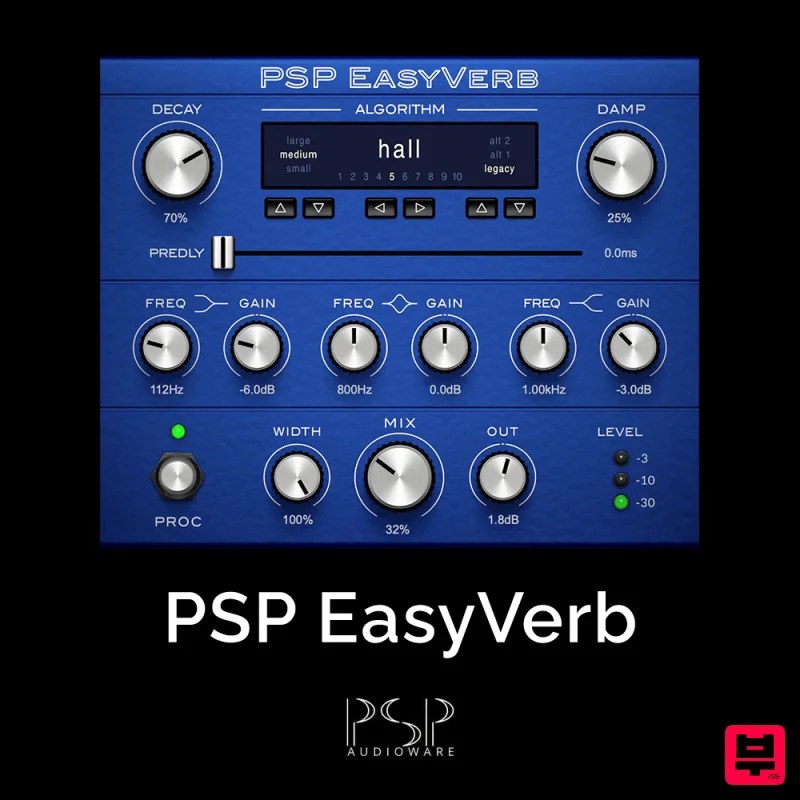
PSP Audioware PSP EasyVerb
Reverb
$30
PSP EasyVerb is a reverberation effect plug-in (VST, RTAS and AAX for Windows; VST, AudioUnit, RTAS and AAX for Mac OS...
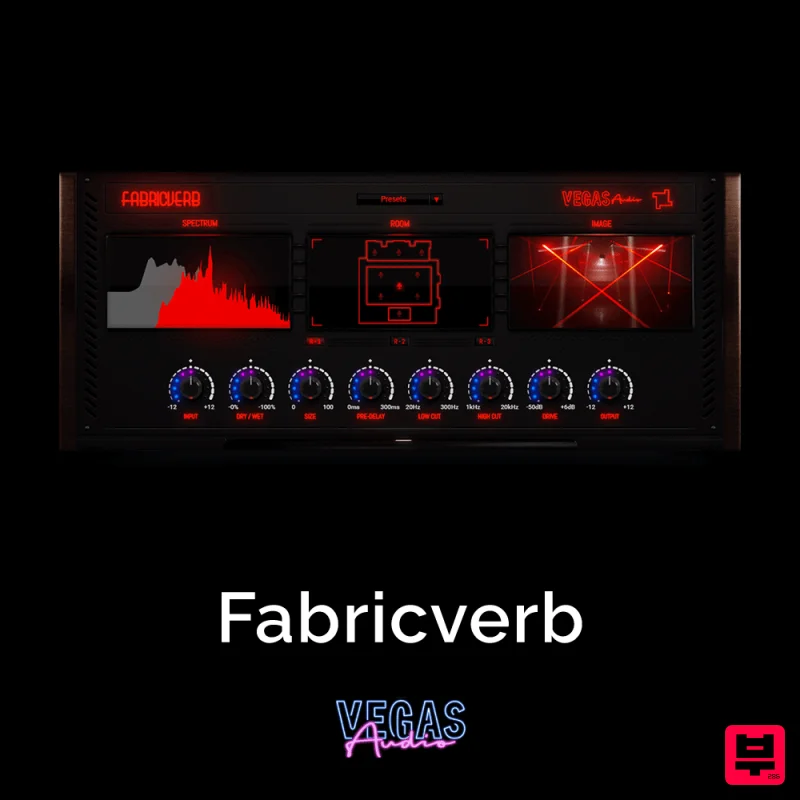
Vegas Audio Fabricverb
Reverb
$30
Get the signature sound of the UK’s most famous nightclub on your digital audio workstation! Our new convolution...
Frequently Asked Questions
The AudioThing Things – Texture stands out for its exceptional AudioThing craftsmanship and innovative design.
Yes! With its affordable price point and quality construction, it's perfect for learning reverb.
Browse the similar products section to see how it stacks up against other reverb.

