
AudioThing Filterjam
Professional music gear - detailed information and where to buy
AudioThing
Filterjam
Product Info
* Prices may vary. Check retailer for current pricing and availability.
Product Description
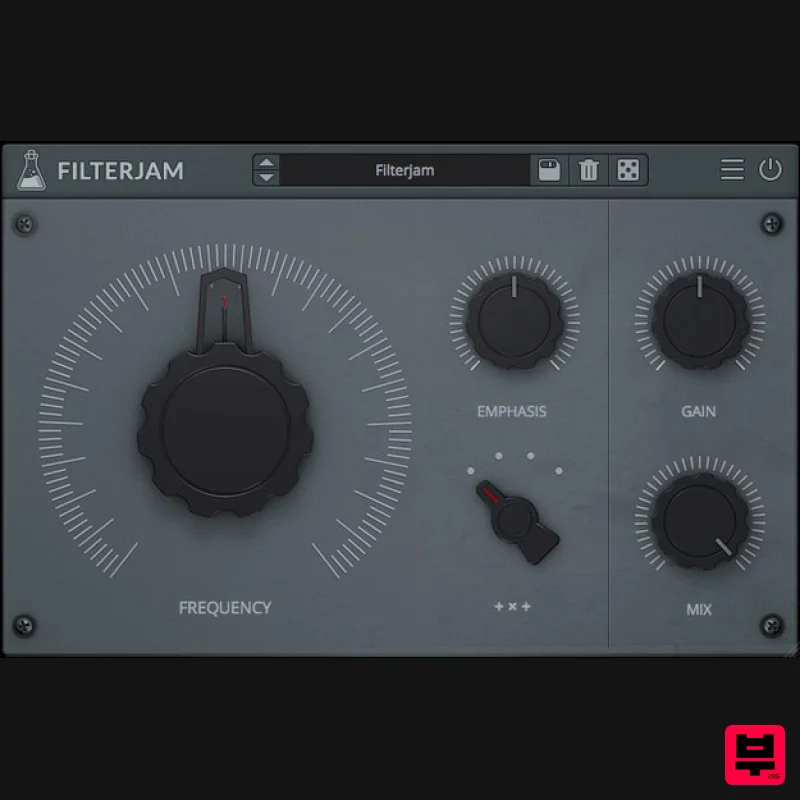
- Multi-Band Resonant Filter Filterjam is a multi-band resonant filter delivering weird ringmod-like filtered sounds. The input signal is divided into 4 bands that are then summed or multiplied together according to the selected mode. Filterjam can be very harsh or gentle
- it can add brightness or depth to synth sounds
- but it can also completely mangle acoustic sources. Features Multi-Band Resonant Filter Lightweight on CPU Preset system with randomizer Formats: VST
- and AAX (64-bit only) Platforms: OSX
- Windows System Requirements Mac: OS X 10.9 - macOS 13 2GHz CPU
- 4 GB RAM Apple Silicon (M chips) Native (Universal 2 Binary) VST2
- VST3
- or AAX (64-bit only) Windows: Windows 7-11 2GHz CPU
- 4 GB RAM VST2
- VST3
- or AAX (64-bit only) Note: You will be added to the AudioThing database but will not receive promotional emails. Note: miniBit is used as the example. Mac 1. Download the .dmg software file from your User Account
- and double-click it to begin the installation process > click ‘Continue’. Note: Click the ‘license.atl’ file
- e.g ‘miniBit_license.atl’ to download it to your computer > Be sure to save this to a memorable computer location
- so that you can easily locate and upload it when activating your software. 2. Read the Software License Agreement > click ‘Continue’ and then ‘Agree’. 3. Select the component (s) that you wish to install to your computer
- and click ‘Continue’. 4. Review the installation and click ‘Install’. 5. The installation of your software has successfully completed > click ‘Close’. 6. Restart your DAW
- and rescan your plugin selection to show the new installation (in the event it fails to appear). 7. Locate and open the plugin on an appropriate track. The Software is now Ready for Use Within Your DAW Windows 1. Download the .zip folder and Key Licence File from your User Account. Double-click the compressed folder to reveal the installer file. Note: Click the ‘license.atl’ file
- e.g ‘miniBit_license.atl’ to download it to your computer > Be sure to save this to a memorable computer location
- so that you can easily locate and upload it when activating your software. 2. Double-click the extracted .exe file to begin the installation process > click ‘Next’. 3. Read through the license agreement and click ‘I accept the agreement’ > click ‘Next’. 4. Select the component (s) that you wish to install > click ‘Next’. 5. Choose and confirm the 64-bit plugin directory (VST2) in which to save your software to > click ‘Next’. 6. Choose and confirm the 32-bit plugin directory (VST2) in which to save your software to > click ‘Next’. 7. Review the installation and click ‘Install’. 8. The installation of your software has successfully completed > click ‘Finish’. 9. Restart your DAW
- and rescan your plugin selection to show the new installation (in the event it fails to appear). 10. Locate and open the plugin on an appropriate track. The Software is now Ready for Use Within Your DAW
Additional Information
About the AudioThing Filterjam
The AudioThing Filterjam combines traditional design with modern performance for Filter enthusiasts.
Why Choose the AudioThing Filterjam?
- •Authentic AudioThing craftsmanship and design
- •Versatile sound suitable for multiple musical genres
- •Professional build quality and reliable performance
- •Part of AudioThing's respected Filter lineup
Compare & Explore
Browse our complete selection of AudioThing instruments or explore other Filter options. Use our comparison tools to find the perfect match for your musical style and budget.
Similar Products
FabFilter Simplon
Filter
$30
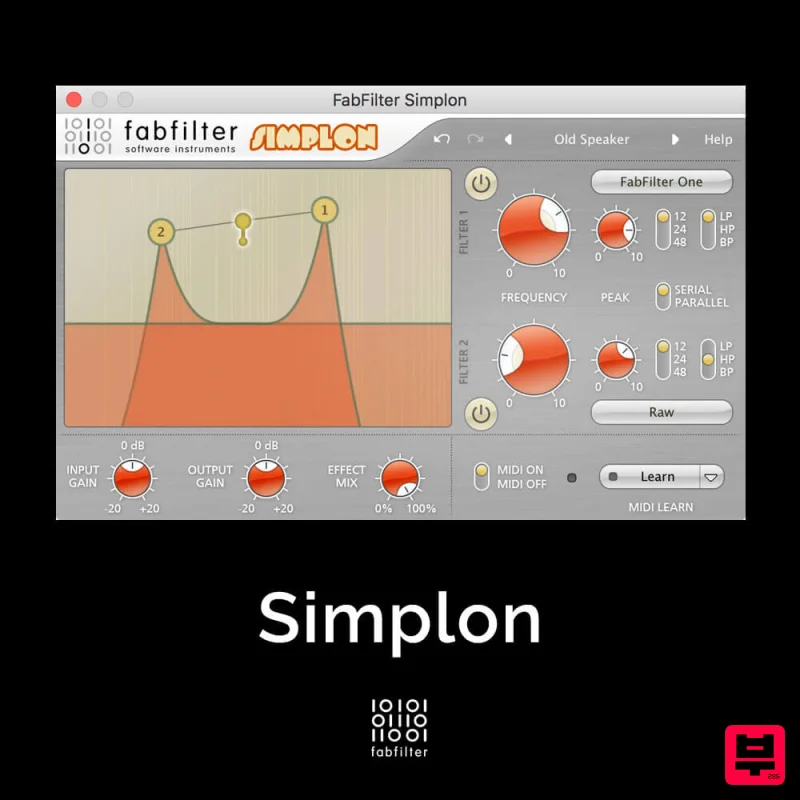
Unique Filters, Easy Display FabFilter Simplon is a simplified version of FabFilter Volcano 2 with two independent...
ALM / Busy Circuits MUM M8 DSP
Filter
$10
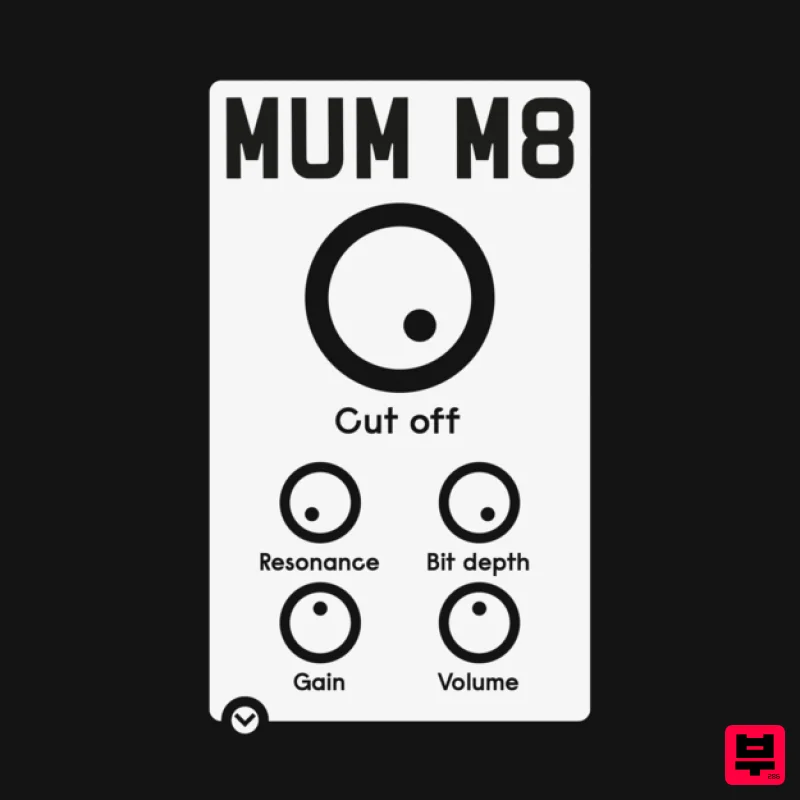
‘MUM M8 DSP’ is a low pass filter plug-in emulating the filter used in the classic Akai S950 12 bit sampler with...
Gooey Audio The Snake
Filter
$30
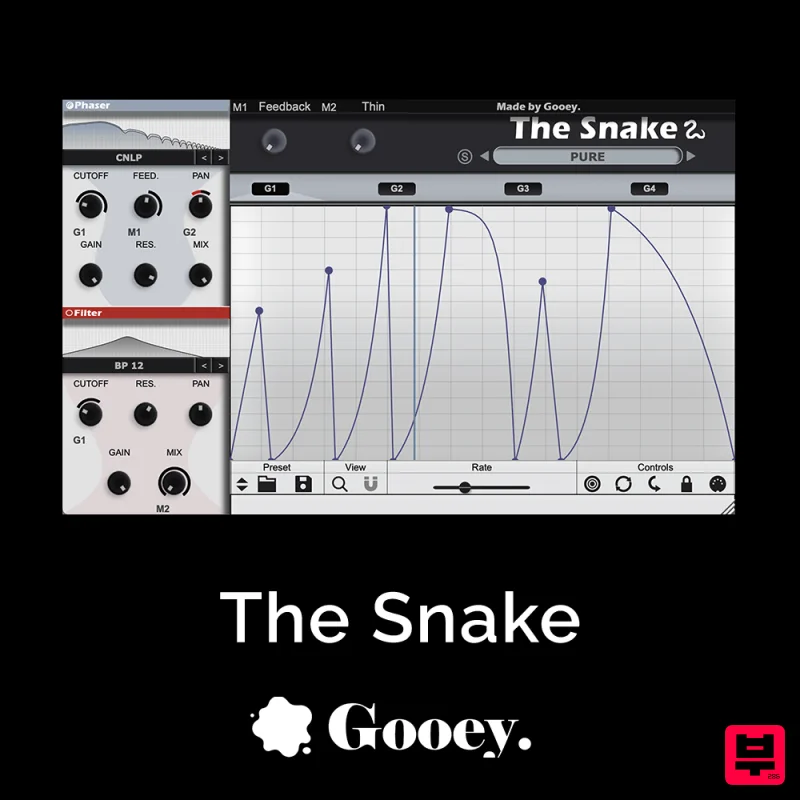
The Snake has a venomous bite with colorful comb filters, phasers, and more. With The Snake you can widen the stereo...

Red Sounds Modern Vox Engine
Filter
$30
Please welcome a collaboration. Red Sounds x Channel Robot. Over a year in development. We recorded vocal samples for 5...
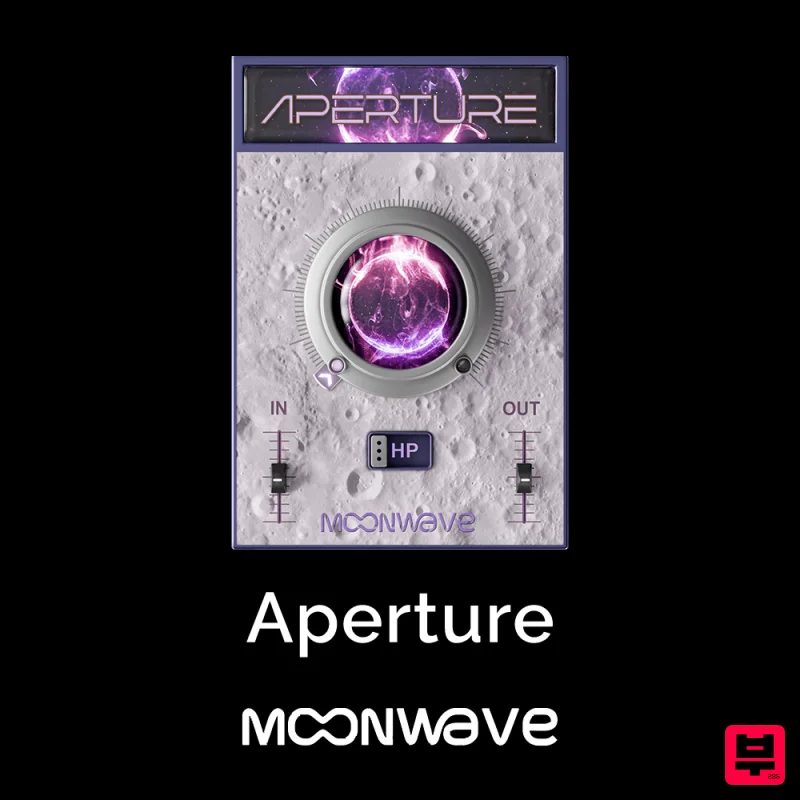
Moonwave Aperture
Filter
$30
Shape The Horizon Of Sound Unlock the gateway to precision filtering with Aperture, a powerful tool designed to give...
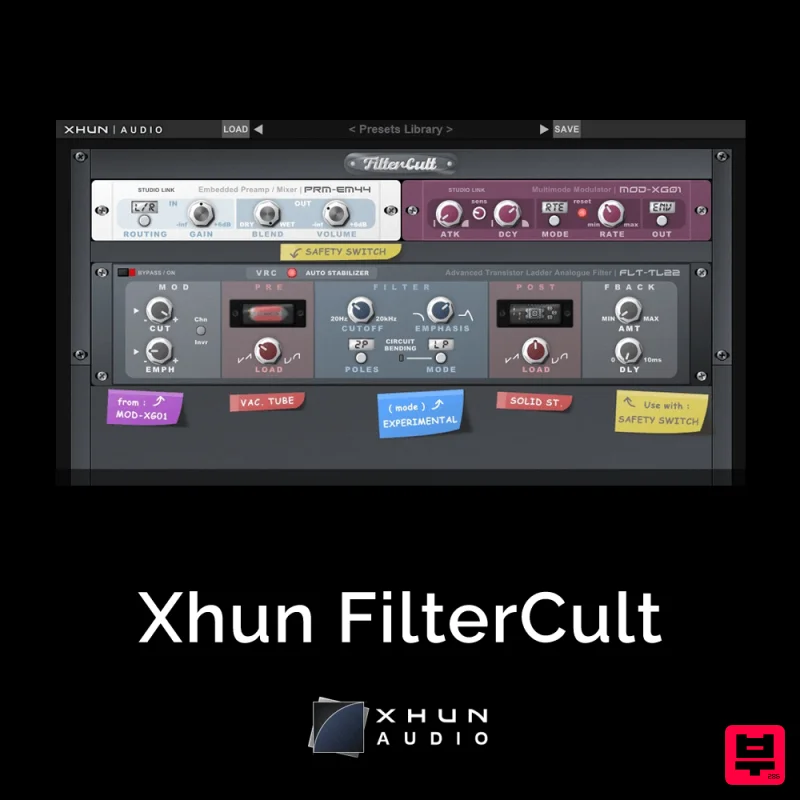
XHUN Audio Xhun FilterCult
Filter
$30
FilterCult is an accurate simulation of the infamous and iconic transistor ladder analogue filter, meticulously...

NoiseAsh Action Filter
Filter
$30
ANALOG FILTER ADDICTION With tons of classic filter models, unique advanced modulation options and convincing analog...
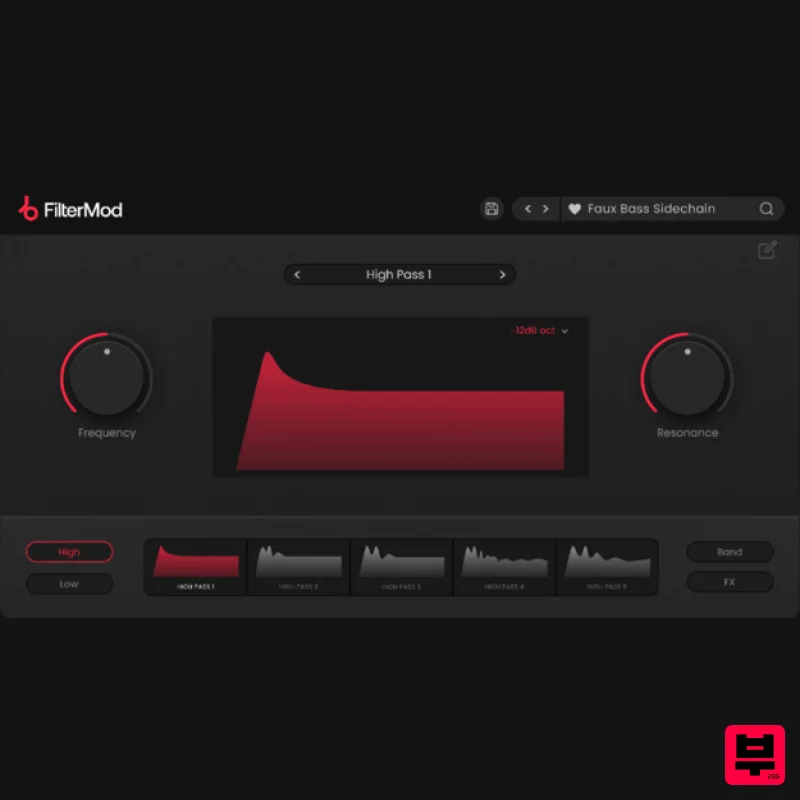
Plugin Boutique FilterMod
Filter
$51
Animate your Filtering Whether it's drums, bass, synths, pads or vocals, filtering is a key element of the production...
Frequently Asked Questions
The AudioThing Filterjam stands out for its exceptional AudioThing craftsmanship and innovative design.
It's designed for intermediate to advanced players who appreciate professional-quality filter.
Browse the similar products section to see how it stacks up against other filter.

