
Waves SoundGrid Rack for VENUE
Professional music gear - detailed information and where to buy
Product Description
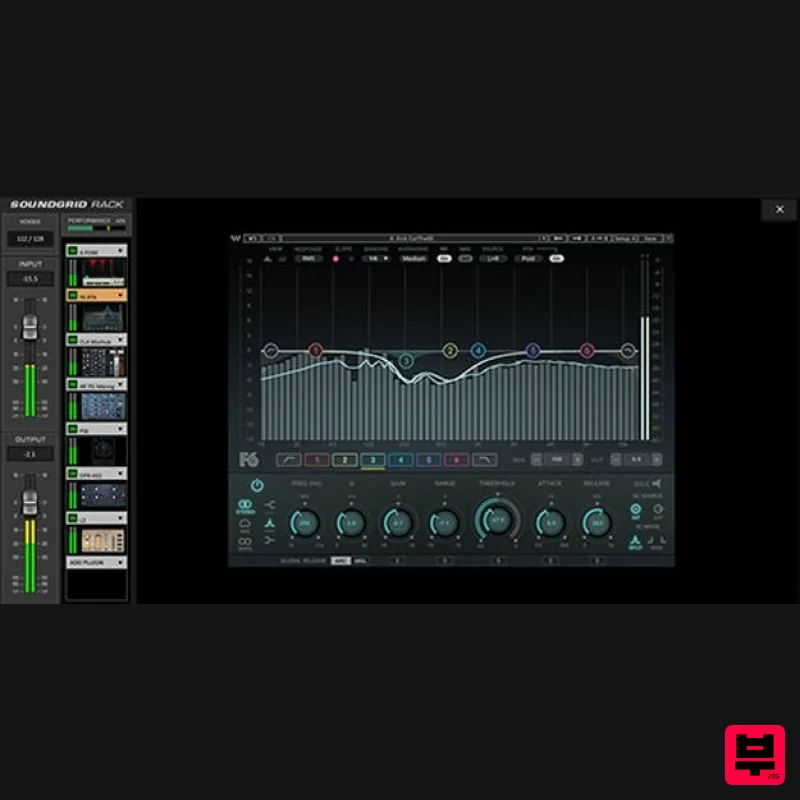
- SoundGrid Rack for VENUE Expand Your VENUE | S6L Console with the Power of Waves Plugins Now live engineers can run up to 64 stereo virtual racks
- each containing up to 8 Waves plugins
- directly within Avid’s VENUE | S6L console—with tactile control from the console’s surface knobs. SoundGrid Rack for VENUE makes it possible
- with no computer host or external network switch. Complete the system with the WSG-HD Waves SoundGrid Option Card
- VENUE software v5.7 or later
- a Waves SoundGrid server to process the plugins
- and Waves plugin licenses of your choice. Features Run Waves plugins directly within your Avid VENUE | S6L console Snapshot automation for plugin parameters Tactile control surface mapping for all Waves plugins Legacy VENUE show file compatibility All standard VENUE plugin features apply
- like Config and Show modes Server redundancy with automatic failover 128 audio paths between Avid and SoundGrid at 96 kHz No external computer host or network switch necessary Follows standard operation of all plugins in the VENUE plug-in rack Connect up to two SoundGrid servers (primary and redundant) Bypass and navigate between Waves plugins within S6L Official supports for Avid I/O sharing System Requirements Avid VENUE | S6L console macOS Monterey 12
- Ventura 13
- Sonoma 14
- Sequoia 15 1. Head to https: //www.waves.com/create-account 2. Enter your email and choose a password to create an account (if you already have a Waves account
- choose Log in
- enter your details and head to Step 5) > click 'Submit' 3. Open your email inbox > click the activation link in the email from Waves 4. Click 'Log in here' > Log in to your Waves account 5. Click 'Register New Products' 6. Enter the Serial Number found in your Plugin Boutique user account > click 'Submit' 7. Click download in your Plugin Boutique user account or head to https: //www.waves.com/downloads/central > download the Waves Central app for your operating system 8. Install Waves Central > Open Waves Central 9. Click 'Log in' > enter your log in details 10. Click the 'Install Products' tab 11. Tick the blue dot on all products you wish to install or click the top dot to install all products > click 'Install & Activate' 12. Click 'OK' 13. Open your DAW > open the Waves plugin Your Waves plugins are installed and ready to use
- enjoy!
Additional Information
About the Waves SoundGrid Rack for VENUE
Discover the distinctive sound and feel of the Waves SoundGrid Rack for VENUE, a standout choice among Utility.
Why Choose the Waves SoundGrid Rack for VENUE?
- •Authentic Waves craftsmanship and design
- •Versatile sound suitable for multiple musical genres
- •Professional build quality and reliable performance
- •Part of Waves's respected Utility lineup
Compare & Explore
Browse our complete selection of Waves instruments or explore other Utility options. Use our comparison tools to find the perfect match for your musical style and budget.
Similar Products
DDMF TheStrip
Utility
$30
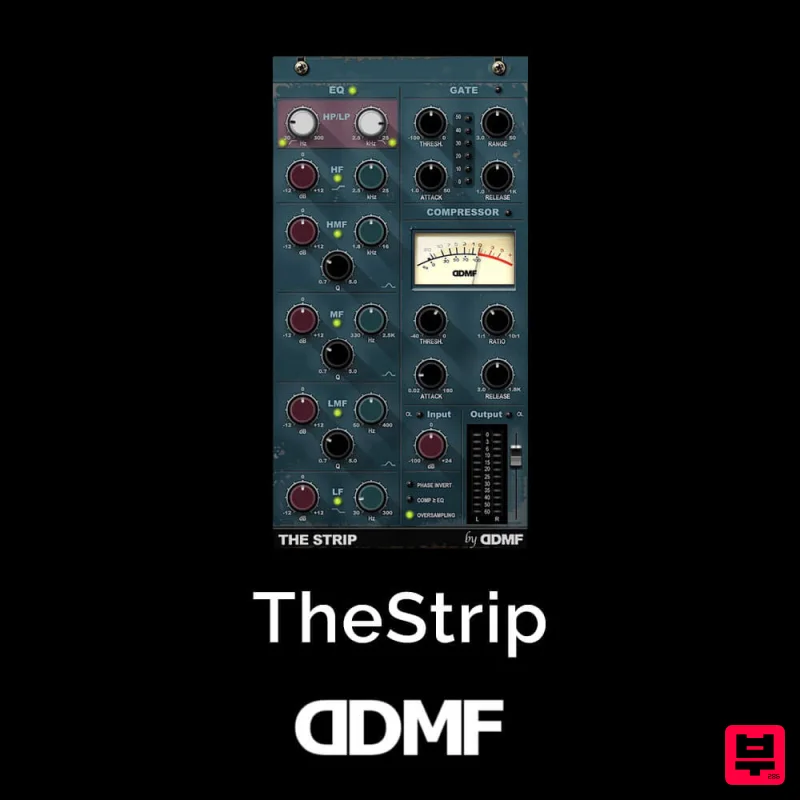
What is it? The Strip is the essential channel strip: the finest EQ, gate and compressor bundled in one beautifully...
Soundspear Luxor
Utility
$30
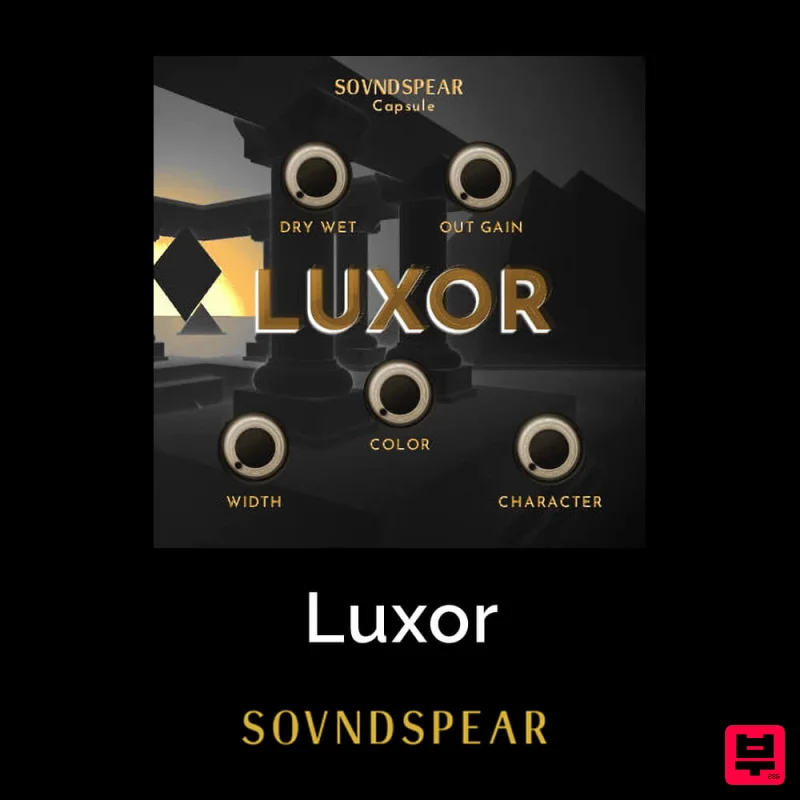
Luxor is the key if you want an instrument to stand out and spread in the mix. It will scoop your high frequencies to...
Inphonik RX950
Utility
$30
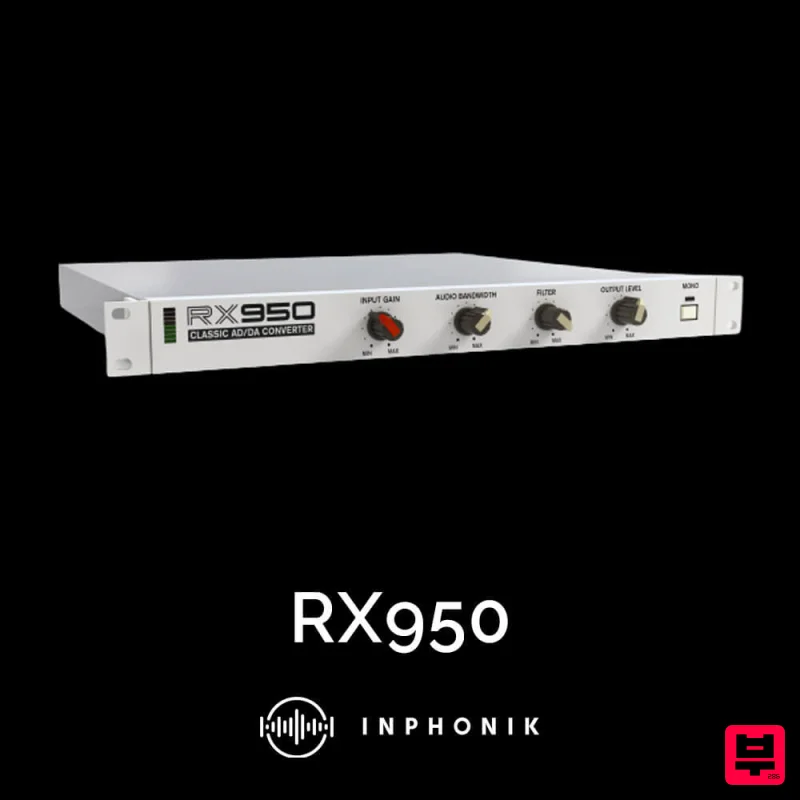
Legendary Grit and Crunch Meet the RX950 Classic AD/DA Converter, Inphonik’s first effect plug-in, designed to...
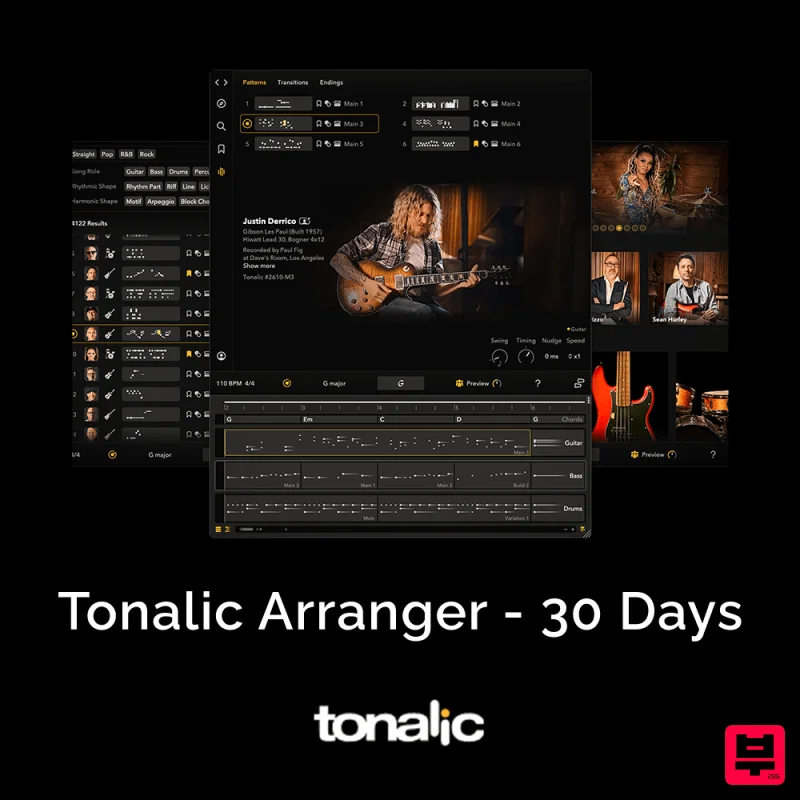
Tonalic Tonalic Arranger - 30 Day Subscription
Utility
$30
Real Musicians. Real Feel. Adaptive Performance Instrument for Your DAW Bring authentic, human musicianship into your...
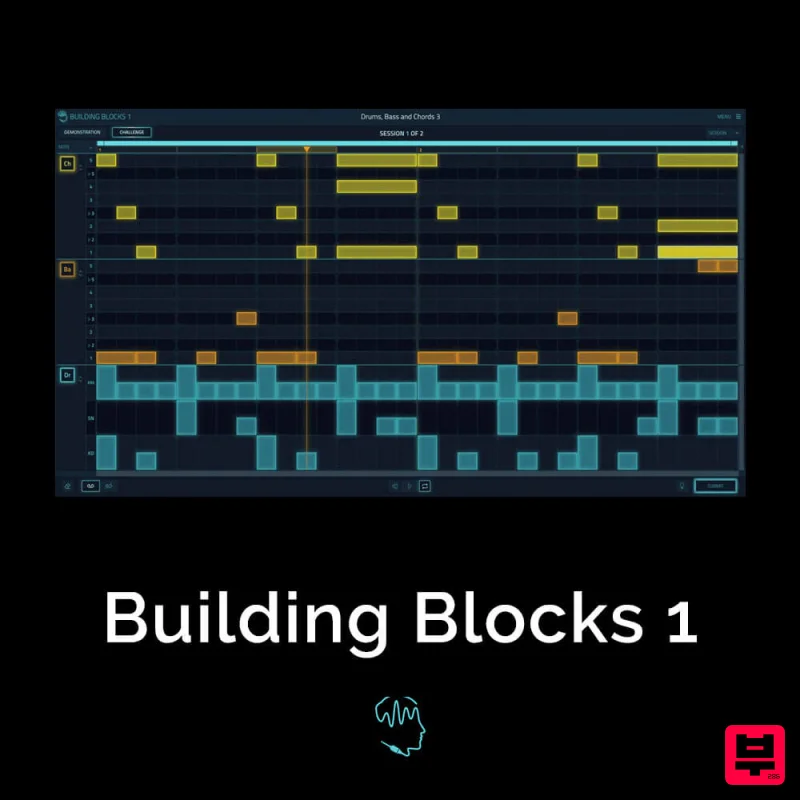
Audible Genius Building Blocks 1
Utility
$30
Music Theory & Composition Training Software for DAW-Based Music Makers Drum Patterns, Basslines, Chord Progressions,...
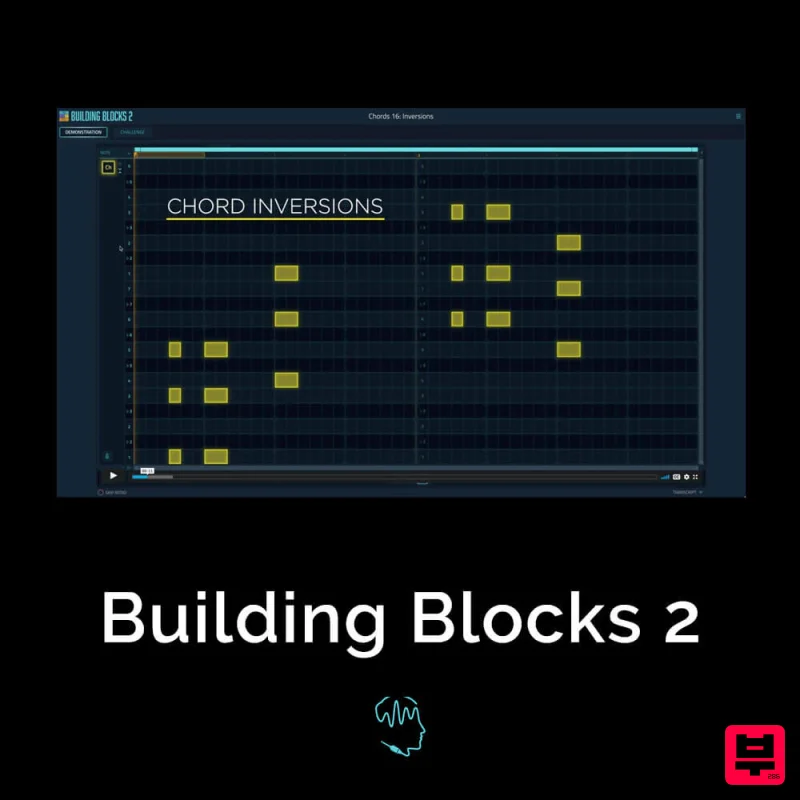
Audible Genius Building Blocks 2
Utility
$30
Music Theory & Composition Training Software for DAW-Based Music Makers Drum Patterns, Basslines, Chord Progressions,...
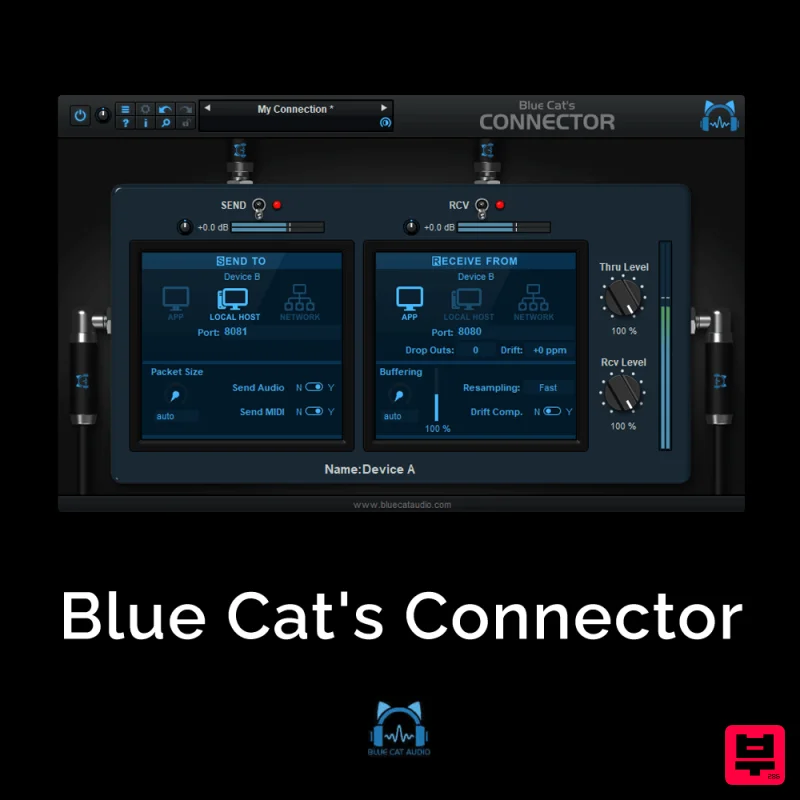
Blue Cat Audio Blue Cat's Connector
Utility
$30
The Virtual Cable For Your Virtual Studio Blue Cat’s Connector is an audio & MIDI streaming plug-in that can be used...
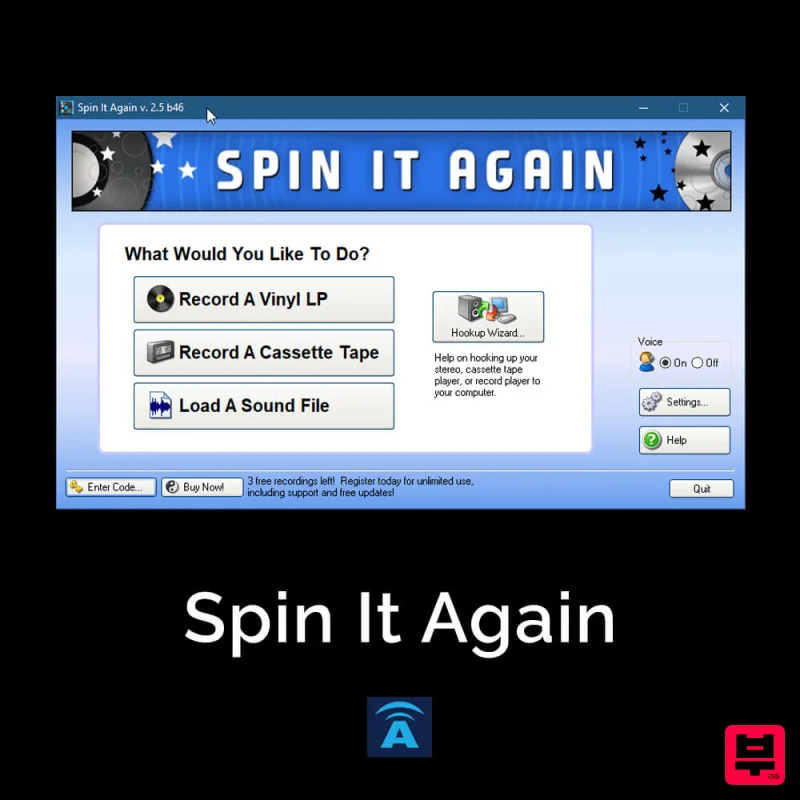
Acoustica Spin It Again
Utility
$30
Spin It Again is the easiest way to convert your LPs and cassettes to CD and MP3. Remember all those ‘oldies but...
Frequently Asked Questions
The Waves SoundGrid Rack for VENUE stands out for its exceptional Waves craftsmanship and innovative design.
It's designed for intermediate to advanced players who appreciate professional-quality utility.
Browse the similar products section to see how it stacks up against other utility.

