
Waves eMo F2 Filter
Professional music gear - detailed information and where to buy
Product Description
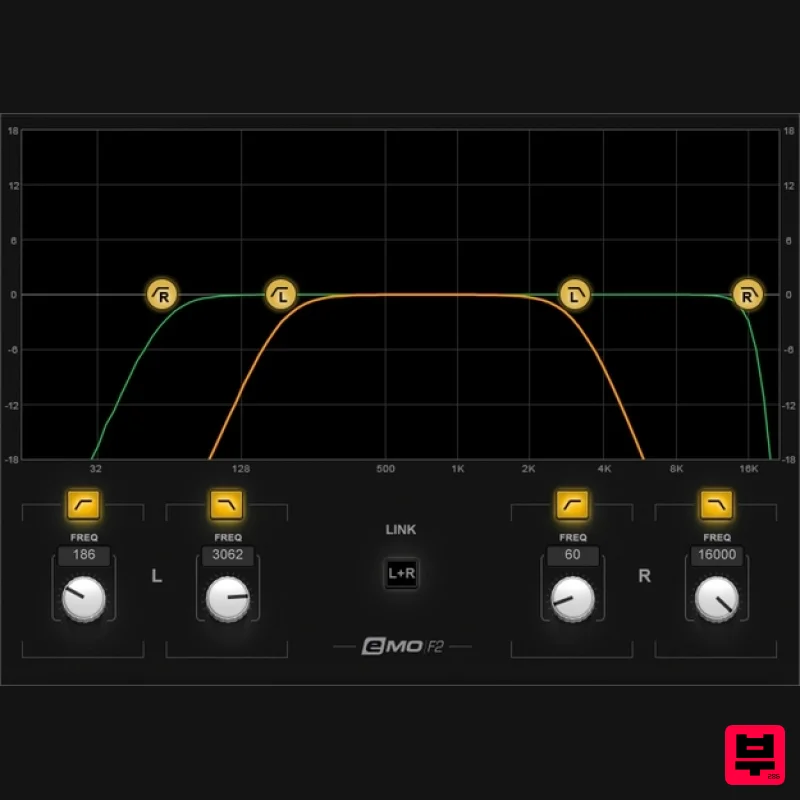
- eMo F2 Filter The Simple Solution to Common Audio Problems So many issues need only a simple high or lowpass filter—prevent bass buildup
- reduce hiss
- keep low frequencies out of reverb
- fix acoustics issues
- reduce amp sim harshness
- minimize mic p-pops
- and more. So why dig through multiple parametric EQ stages to find what you need? eMo F2 Filter’s touch-friendly interface
- full LV1 compatibility
- zero latency
- and low CPU consumption make it a natural for fixing live performance problems—quickly and simply. Features 2-band high-pass/low-pass filter
- with 18-dB-per-octave rolloff for each filter Use as a separate plugin or as part of the eMotion LV1 live mixer’s channel strip Zero latency with ultra-low CPU consumption Mono
- dual mono
- or linked stereo operation Filter right and left sides independently
- or link them Turn controls
- drag the graphic display’s curve
- or enter values Multi-touch compatibility Optimized for live sound mixing System Requirements Mac macOS Monterey 12
- Ventura 13
- Sonoma 14
- Sequoia 15 VST / AU / AAX PC Windows 10+ VST / AAX 1. Head to https: //www.waves.com/create-account 2. Enter your email and choose a password to create an account (if you already have a Waves account
- choose Log in
- enter your details and head to Step 5) > click 'Submit' 3. Open your email inbox > click the activation link in the email from Waves 4. Click 'Log in here' > Log in to your Waves account 5. Click 'Register New Products' 6. Enter the Serial Number found in your Plugin Boutique user account > click 'Submit' 7. Click download in your Plugin Boutique user account or head to https: //www.waves.com/downloads/central > download the Waves Central app for your operating system 8. Install Waves Central > Open Waves Central 9. Click 'Log in' > enter your log in details 10. Click the 'Install Products' tab 11. Tick the blue dot on all products you wish to install or click the top dot to install all products > click 'Install & Activate' 12. Click 'OK' 13. Open your DAW > open the Waves plugin Your Waves plugins are installed and ready to use
- enjoy!
Additional Information
About the Waves eMo F2 Filter
Discover the distinctive sound and feel of the Waves eMo F2 Filter, a standout choice among Filter.
Why Choose the Waves eMo F2 Filter?
- •Authentic Waves craftsmanship and design
- •Versatile sound suitable for multiple musical genres
- •Professional build quality and reliable performance
- •Part of Waves's respected Filter lineup
Compare & Explore
Browse our complete selection of Waves instruments or explore other Filter options. Use our comparison tools to find the perfect match for your musical style and budget.
Similar Products

Red Sounds Modern Vox Engine
Filter
$30
Please welcome a collaboration. Red Sounds x Channel Robot. Over a year in development. We recorded vocal samples for 5...
ALM / Busy Circuits MUM M8 DSP
Filter
$10
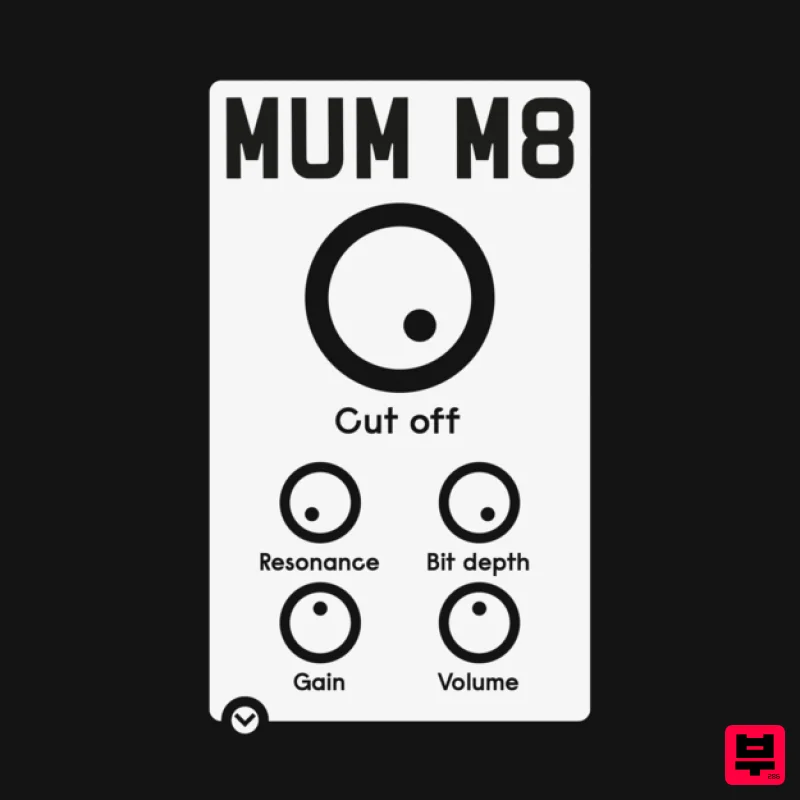
‘MUM M8 DSP’ is a low pass filter plug-in emulating the filter used in the classic Akai S950 12 bit sampler with...
XHUN Audio Xhun FilterCult
Filter
$30
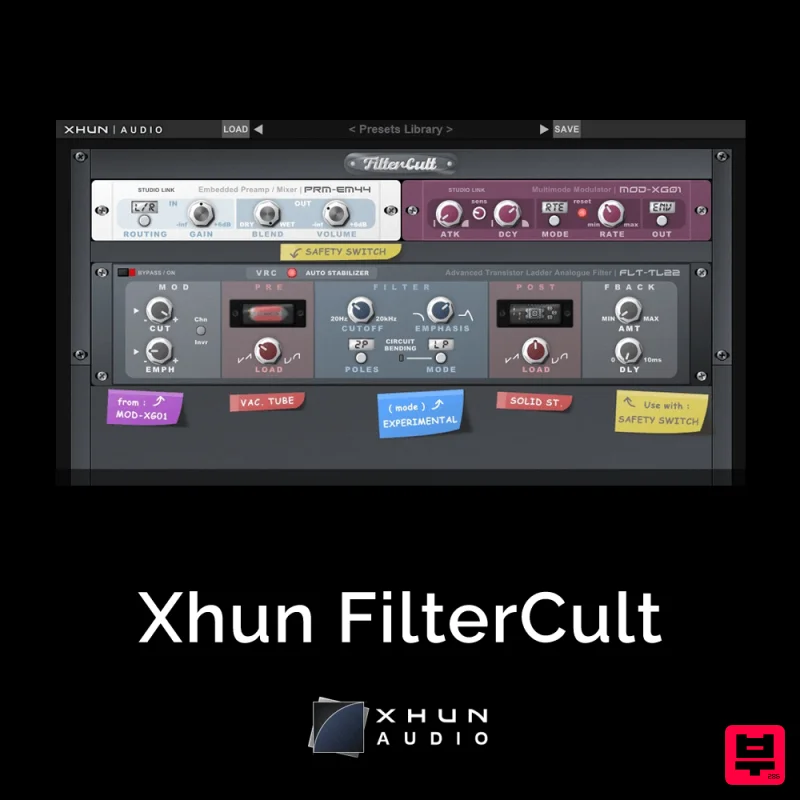
FilterCult is an accurate simulation of the infamous and iconic transistor ladder analogue filter, meticulously...
FabFilter Simplon
Filter
$30
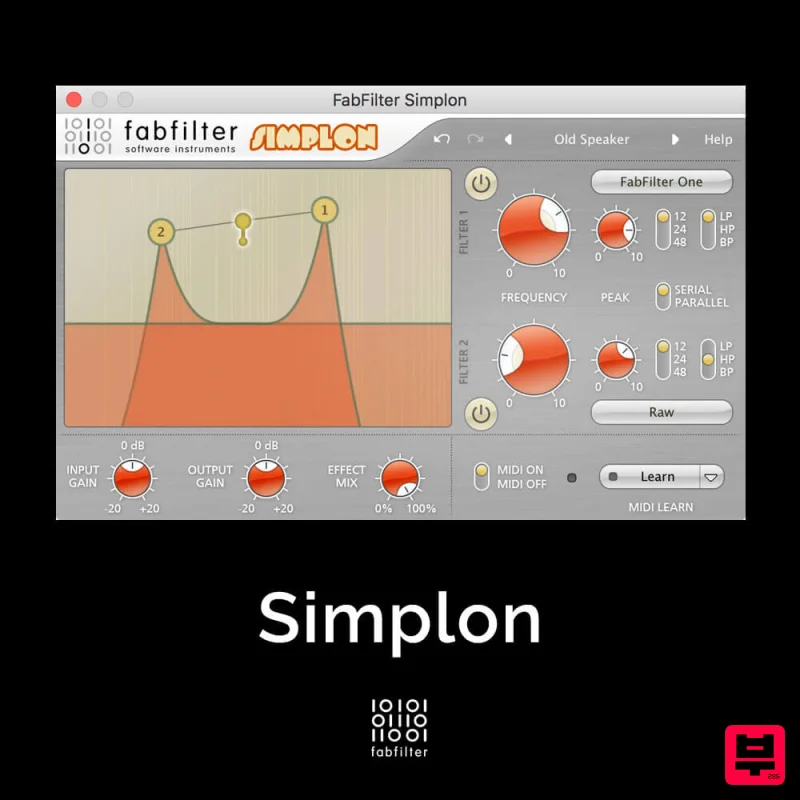
Unique Filters, Easy Display FabFilter Simplon is a simplified version of FabFilter Volcano 2 with two independent...
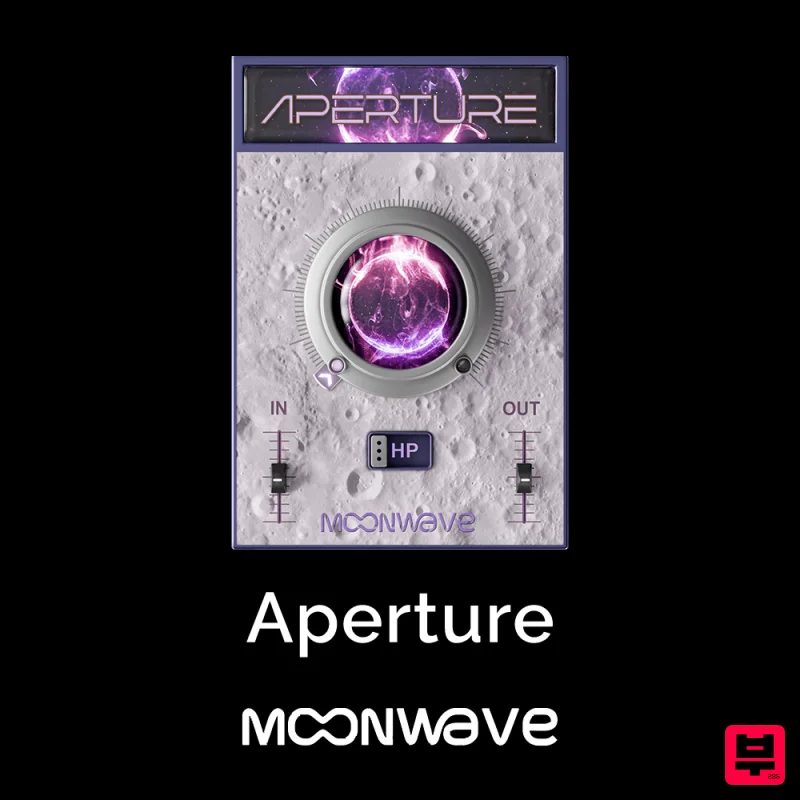
Moonwave Aperture
Filter
$30
Shape The Horizon Of Sound Unlock the gateway to precision filtering with Aperture, a powerful tool designed to give...
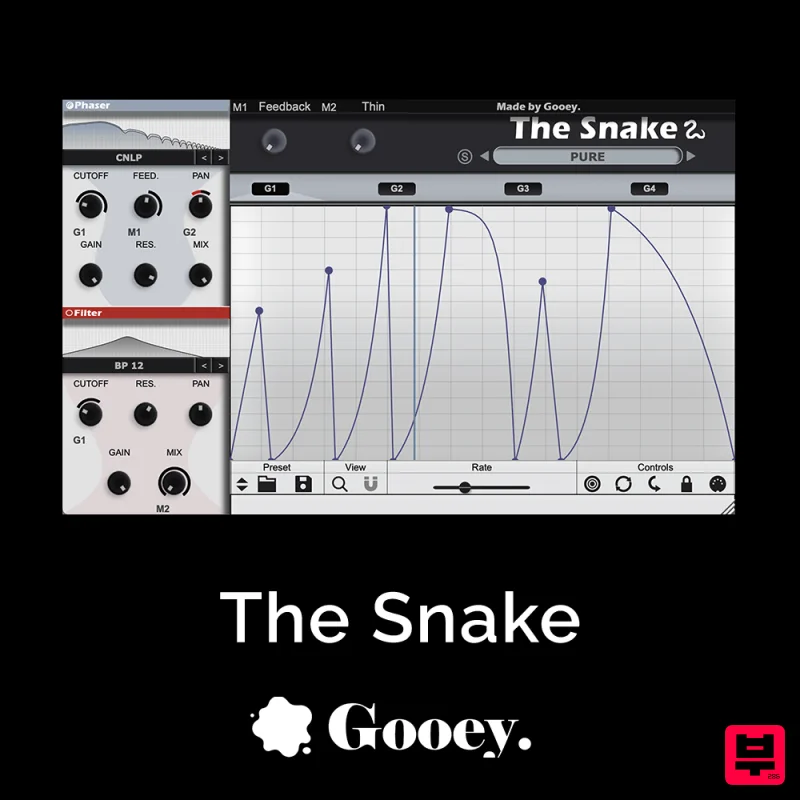
Gooey Audio The Snake
Filter
$30
The Snake has a venomous bite with colorful comb filters, phasers, and more. With The Snake you can widen the stereo...

NoiseAsh Action Filter
Filter
$30
ANALOG FILTER ADDICTION With tons of classic filter models, unique advanced modulation options and convincing analog...
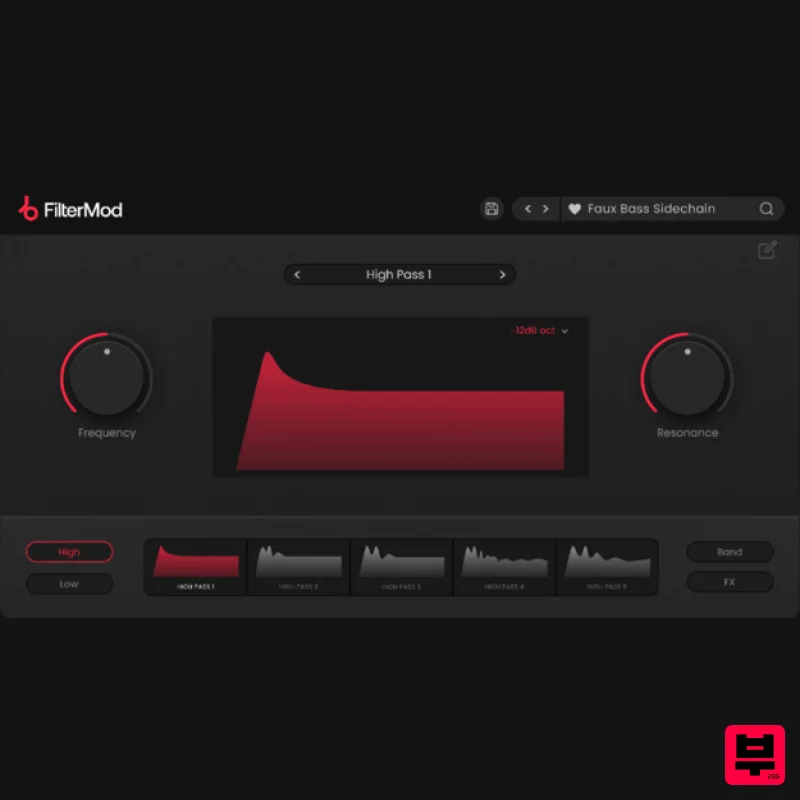
Plugin Boutique FilterMod
Filter
$51
Animate your Filtering Whether it's drums, bass, synths, pads or vocals, filtering is a key element of the production...
Frequently Asked Questions
The Waves eMo F2 Filter stands out for its exceptional Waves craftsmanship and innovative design.
Yes! With its affordable price point and quality construction, it's perfect for learning filter.
Browse the similar products section to see how it stacks up against other filter.

