
Waldorf Blofeld License SL
Professional music gear - detailed information and where to buy
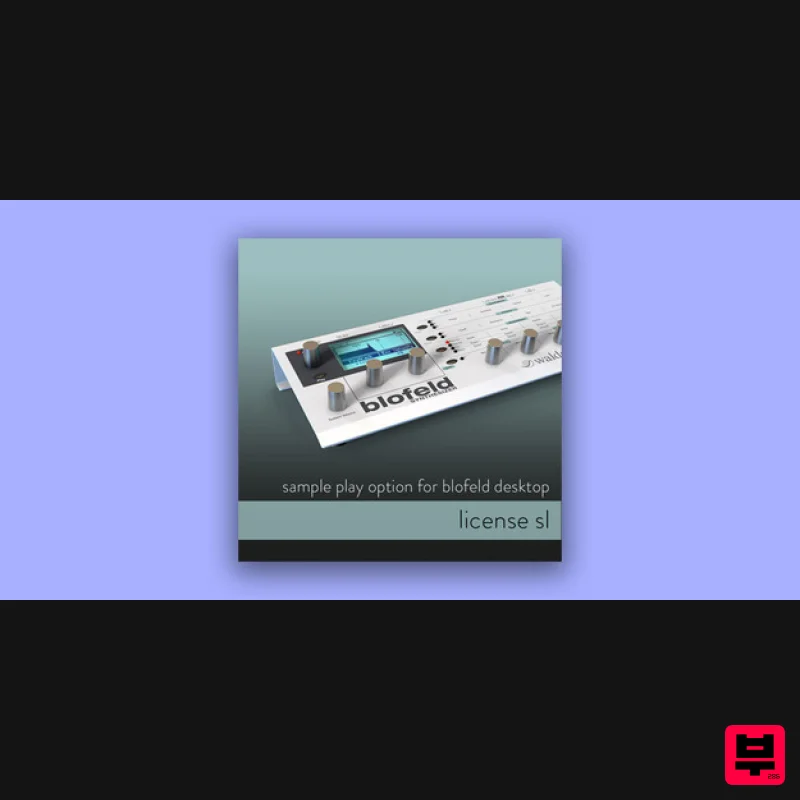
Waldorf
Blofeld License SL
Product Info
* Prices may vary. Check retailer for current pricing and availability.
Product Description
- Please Note: For Blofeld Desktop only! Blofeld Keyboard has License SL pre-installed License SL is the Sample Play Option for Blofeld desktop. With this license
- 60 Megabyte of Sample Flash Memory are available for factory or user samples. These samples and multisamples go through Blofeld’s synthesis engine just like oscillators – an enormous extension to Blofeld’s sonic possibilities! The following two soundsets are included in the License SL package: Technohouse Alien Space Collaborative Pre-installation After purchase
- your License Coupon has already been created and can be found in your "myWaldorf" account under "License keys." You will need it later. All required files can be found here: https://cloud.waldorfmusic.com/index.php/s/exb9gptXw9iMJSt Registration Identify your "challenge code“ by sending the "challenge.mid“ file to your Blofeld. Send this challenge code and the license coupon you received when you purchased the SL license to: [email protected] Waldorf will send you an activation file which has to be sent to the Blofeld to unlock the SL option. Activation 1. Connection & Firmware Connect your Blofeld via USB directly to your computer (without USB hub or other hardware) Please make sure the Blofeld has the latest firmware installed. The version will be displayed at device startup. Here you’ll find the latest firmware version and instructions for installation: further information at the following link 2. Program "Spectre" Download the program Spectre by using the following link: https://cloud.waldorfmusic.com/index.php/s/3bBQ5bam3Sd6M4s Install Spectre on your computer and start the program. 3. Set up "Spectre" Click on Audio / MIDI to configure Spectre. At MIDI Output select your Blofeld. Disable all options in Active MIDI inputs. 4. Identify Your Blofeld Challenge Code Download the file Blofeld-Challenge File from the following link: https://cloud.waldorfmusic.com/index.php/s/6zbpRaYMNzsfdMM Close the MIDI & Audio Settings window. Click on the Upgrade Button
- select the file Blofeld-Challenge.mid and click on Open. Now the challenge file will be transmitted to the Blofeld and the Challenge Code appears in the following format: XXXXX.XXXXX.XXXXX.XXXXX - See the example below. If the transmission fails
- please check the MIDI settings on the Blofeld. Press the Shift & Global button and use the encoder left of the display to select the Global MIDIarea. The following settings should be displayed. MIDI Channel: omni Device ID: 0 Please note down the challenge code including dots. Send the challenge code and your purchased License Coupon to:[email protected] After you have been sent the activation file (usually this takes no more than 1-2 business days) proceed as follows. 5. SL Activation Now you have to transfer the „activation file“ to your Blofeld as final step. Follow the same procedure as for the Challenge File in step 4 by using the upgrade function. Wait for the upgrade to reach 100%. After restarting the Blofeld should now show SL Licensed on the display. Only in this case the License SL is installed correctly. If the Blofeld does not display the message
- the transmission went wrong.In this case
- switch off the Blofeld
- wait 10 seconds and switch on again. Quit Spectre and restart it. Repeat everything again starting with Step 3. 6. Transfer a Blofeld Waveset/Sampleset Open the program Spectre and select Blofeld at Midi Output. (See step 3). Press the Load button and select the file with the extension .wpc. Then press the Transmit button to transfer the sample set to the Blofeld. Now check if there are additional samples in memory. To do this
- press Utility and scroll to the end behind the wavetables with Encoder Mix1 (Sample A1...) If the transmission was not successful
- proceed as follows. Save the loaded .wpc file as .mid file on your computer by pressing the Save MIDI File button in Spectre. Then load and send the just saved file .mid with the Upgrade function to the Blofeld. Now check again if there are additional samples in memory. 7. Transfer a Blofeld SoundSet After unpacking the soundset .zip transfer the file .mid to the blofeld with the Upgrade button. Depending on which file you’ll select
- the corresponding bank A-H will be overwritten by the SoundSet. That's it! Have fun. Your Waldorf team All required files can also be transferred with a DAW or with a sysex tool (e.g. Sysex Librarian for Mac OS or MIDI OX for Windows).
Additional Information
About the Waldorf Blofeld License SL
Discover the distinctive sound and feel of the Waldorf Blofeld License SL, a standout choice among Expansion Packs.
Why Choose the Waldorf Blofeld License SL?
- •Authentic Waldorf craftsmanship and design
- •Versatile sound suitable for multiple musical genres
- •Professional build quality and reliable performance
- •Part of Waldorf's respected Expansion Packs lineup
Compare & Explore
Browse our complete selection of Waldorf instruments or explore other Expansion Packs options. Use our comparison tools to find the perfect match for your musical style and budget.
Similar Products
Tracktion Langweil 150 Expansion Pack (for Attracktive)
Expansion Packs
Tracktion Suitcase in a Box Expansion Pack (for Attracktive)
Expansion Packs

Tracktion Taurinorum Expansion Pack (for Attracktive)
Expansion Packs

Tracktion Stonegrabber D-232 Expansion Pack (for Attracktive)
Expansion Packs
Tracktion SA-1000 Expansion Pack (for Attracktive)
Expansion Packs
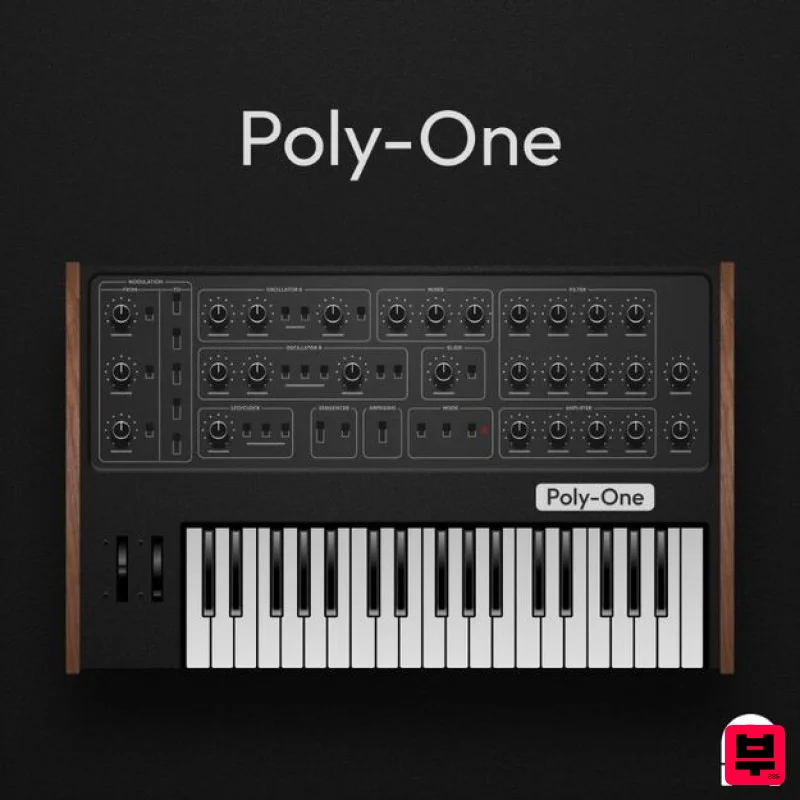
Tracktion Poly-One Expansion Pack (for Attracktive)
Expansion Packs
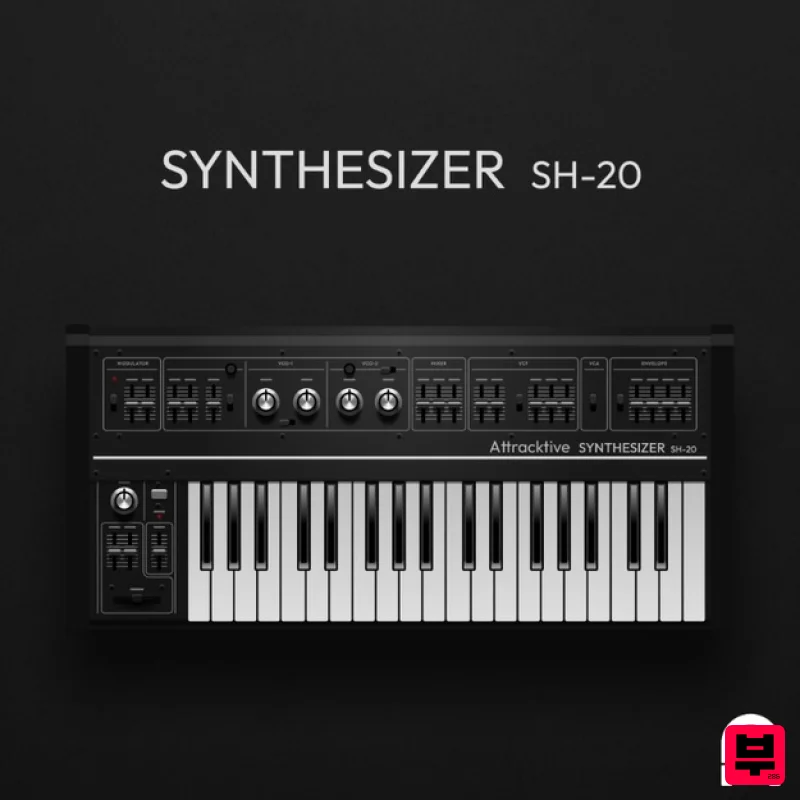
Tracktion SH-20 Expansion Pack (for Attracktive)
Expansion Packs
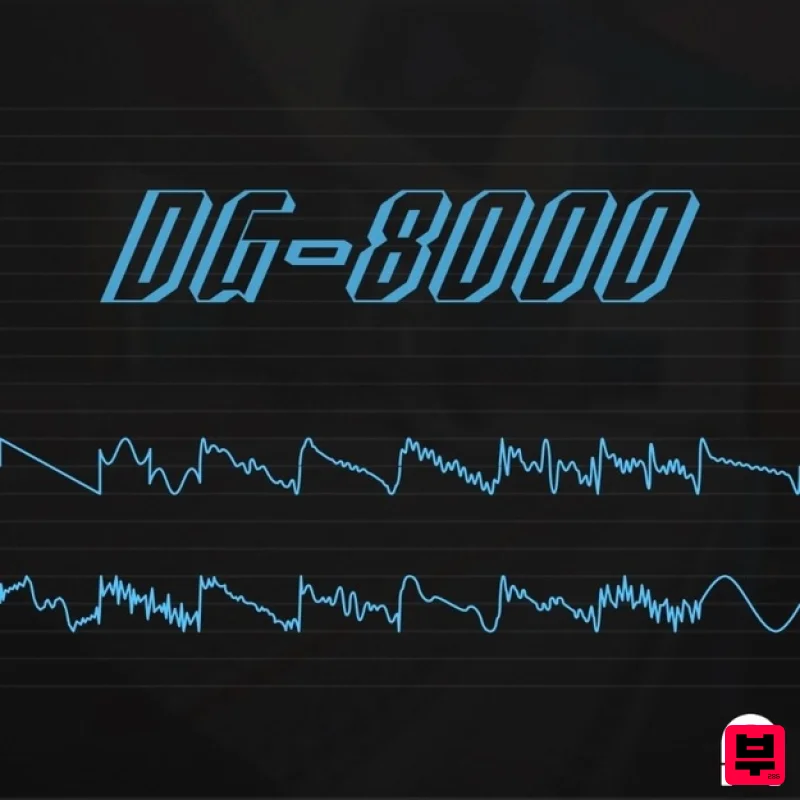
Tracktion DG-8000 Expansion Pack (for Attracktive)
Expansion Packs

