
Rob Papen Blade 2
Professional music gear - detailed information and where to buy
Product Description
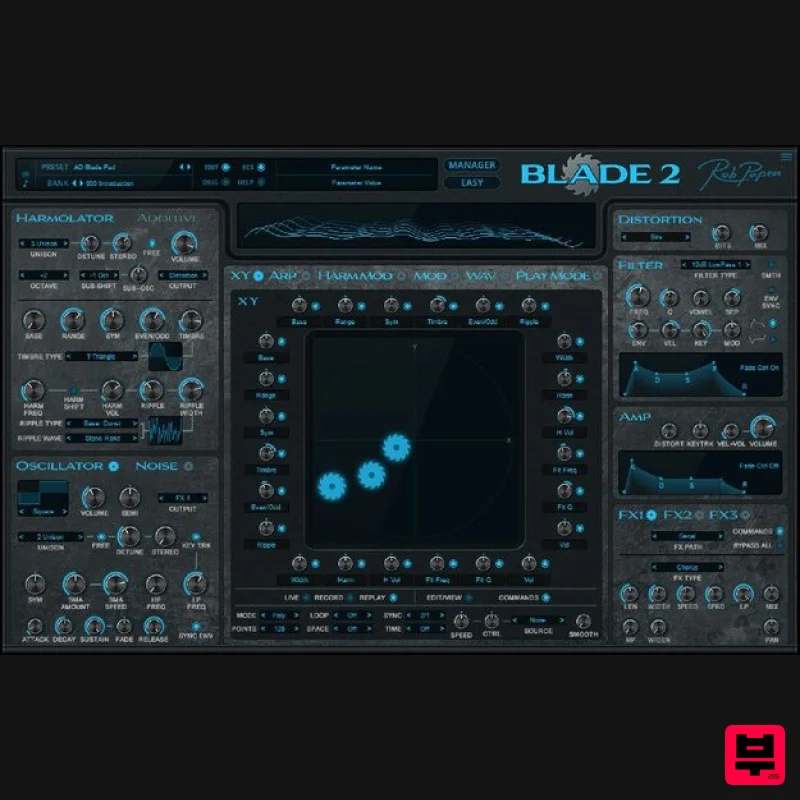
- Important Note: This is the full version of Blade 2. An upgrade for customers who already own Blade is also available here. The original BLADE synthesizer released in 2012 had a unique concept in controlling the waveform harmonics (Harmolator) by using an XY pad. On top of that
- the XY pad movement could also be recorded
- edited
- and played back tempo-based. This concept of BLADE meant that you could generate some very different sounds
- compared to regular subtractive and even additive synthesizers. With BLADE-2 Rob Papen have expanded the features of BLADE even further again making it a dream synthesizer for synth lovers who like to think out of the box and love to experiment! Next to the Harmolator mode
- Rob Papen has now included an Additive mode which allows you to morph or mix between 4 additive waveforms using the XY pad. Of course
- in addition to using these additive waves
- you can also create and edit your own! Another new addition is a dedicated wave-analyze section that allows analyzing of sample data into a waveform
- which then again can be used in the Harmolator or Additive section. To expand the sound options
- even more
- BLADE-2 also includes an additional analogue-type oscillator plus a noise oscillator. However
- it doesn’t stop there
- because it now has 32 different Filter types to help shape your sound further! The Arpeggiator section inside BLADE-2 has also received a huge update with some very cool new features. There are now two additional rows for controlling the X and Y position of the XY pad. Also new is the ‘ratcheting’ feature including different ratcheting modes. Last but not least
- BLADE-2 has 3 Multi-FX processors with the high-quality top-notch – Rob Papen - FX. Features 16 Voice virtual synthesizer GUI size 100%
- 125%
- 150%
- and 200% Different tunings possible using .tun files Responds to MIDI Program change and MIDI Bank Select System Requirements PC Windows 7 or higher (32 & 64 bits) Formats: VST AAX (Note: PC AAX for PT 12 or higher) Mac OS-X 10.9 - 10.15 (64 bits only) Formats: AU VST AAX Notes: Serial/licence system with activation whilst registering the product 2nd serial for a secondary computer/laptop is available after you have registered the product’s original serial/license. (SubBoomBass is used as the example). Mac 1. Visit Rob Papen and create an account by selecting 'Create Account'. Note: If you already have an account set up with Ron Papen
- 'Login' to your account and skip to step 4. of the installation process. 2. Enter your personal details
- and once completed check the tick box that reads 'Yes
- I agree to Privacy Policy Rob Papen' before clicking 'Send Registration'. 3. The registration of your account has successfully been completed > select 'click here to login' to access your account area. 4. Select the 'My Products' tab
- which is located at the top-left corner of your account area. 5. Click the 'Register New' option. 6. Select the product that you have purchased
- as well as the most recent version number (which in this instance is 'Online')
- before manually entering/copying and pasting the 32-digit Serial Number that is provided within your User Account > once completed
- click the 'Save' tab to register your software. Note: Ensure that you select the correct 'Product' and 'Type'
- as well as checking that there are no spaces/mistakes when entering your Serial Number > if you receive a code error message of any kind
- refresh the web page and manually enter the digits (including the '-' hyphens) before re-clicking the 'Save' option. 7. The registration of your software has successfully completed > select the 'Download latest version: SubBoomBass' hyperlink to navigate to the software download area. 8. Select the relevant format installer download (s) in accordance with your DAW's compability specifications
- to inititiate the downloading of your purchased software. Note: The product user manual is also obtainable from this location. 9. Once the software installer file has finished downloading
- click the file entitled 'SubBoomBass_Installer.dmg' to launch the application installer application. 10. Double-click the 'SubBoomBass_Installer.pkg' application icon begin the installation process. 11. Click 'Continue' to verify the installation
- if prompted to do so. 12. Click 'Continue' once again. 13. Read through the Licence Agreement > click 'Continue' then 'Agree'. 14. Manually enter/copy and paste the original 32-digit Serial Number that you were provided with
- before clicking 'Continue' (the Serial Number is located in both your Plugin Boutique and Rob Papen User Accounts). Note: Ensure that you select the correct 'Product' and 'Type'
- as well as checkingt that there are no spaces/mistakes when entering your Serial Number > if you receive a code error message of any kind
- manually enter the digits (including the '-' hyphens) before re-clicking the 'Continue' option. 15. Review the installation before clicking 'Install'
- and then 'Continue Installation'. 16. The installation of your software has successfully completed > click 'Restart' to reboot your computer. Note: Ensure that you have saved any important work that may be open within the applications you currently have open
- before selecting the 'Restart' option. 17. After your computer has successfully restarted
- open your DAW and locate/open your newly installed/activated software VST. Note: If the software fails to appear
- rescan your DAW's Plug-in selection. The Software is now Activated and Ready for Use Within Your DAW! Windows 1. Visit Rob Papen and create an account by selecting 'Create Account'. Note: If you already have an account set up with Ron Papen
- 'Login' to your account and skip to step 4. of the installation process. 2. Enter your personal details
- and once completed check the tick box that reads 'Yes
- I agree to Privacy Policy Rob Papen' before clicking 'Send Registration'. 3. The registration of your account has successfully been completed > select 'click here to login' to access your account area. 4. Select the 'My Products' tab
- which is located at the top-left corner of your account area. 5. Click the 'Register New' option. 6. Select the product that you have purchased
- as well as the most recent version number (which in this instance is 'Online')
- before manually entering/copying and pasting the 32-digit Serial Number that is provided within your User Account > once completed
- click the 'Save' tab to register your software. Note: Ensure that you select the correct 'Product' and 'Type'
- as well as checking that there are no spaces/mistakes when entering your Serial Number > if you receive a code error message of any kind
- refresh the web page and manually enter the digits (including the '-' hyphens) before re-clicking the 'Save' option. 7. The registration of your software has successfully completed > select the 'Download latest version: SubBoomBass' hyperlink to navigate to the software download area. 8. Select the relevant format installer download (s) in accordance with your DAW's compability specifications
- to inititiate the downloading of your purchased software. Note: The product user manual is also obtainable from this location. 9. After the software installer file has finished downloading
- double-click the file entitled 'SubBoomBass_Installer' .zip folder to extract the .exe installer file. 10. Once extracted
- double-click the .exe installer file to begin the installation process > click 'Next'. 11. Read through the Licence Agreement and select 'I accept the agreement' > click 'Next'. 12. Type in your preferred User Name
- Organization and manually enter/copy and paste the original Serial Number that you were provided with
- before clicking 'Continue' (the Serial Number is located in both your Plugin Boutique and Rob Papen User Accounts). Note: Ensure that you select the correct 'Product' and 'Type'
- as well as checking that there are no spaces/mistakes when entering your Serial Number > if you receive a code error message of any kind
- manually enter the digits (including the '-' hyphens) before re-clicking the 'Next' option. 13. Select a computer VST Plug-ins folder destination in which to install/save your software to > click 'Next'. 14. Select a computer Library location in which to install/save your software to > click 'Next'. 15. Select the software format (s) that you wish to install > click 'Next'. 16. Select a Start Menu Folder to create a shortcut to your new software installation > click 'Next'. 17. Review the installation and click 'Install'. 18. The installation of your software has successfully completed > click 'Finish'. 19. After your computer has successfully restarted
- open your DAW and locate/open your newly installed/activated software VST. Note: If the software fails to appear
- rescan your DAW's Plug-in selection. The Software is now Activated and Ready for Use Within Your DAW!
Additional Information
About the Rob Papen Blade 2
The Rob Papen Blade 2 represents excellent craftsmanship in the Synth category.
Why Choose the Rob Papen Blade 2?
- •Authentic Rob Papen craftsmanship and design
- •Versatile sound suitable for multiple musical genres
- •Professional build quality and reliable performance
- •Part of Rob Papen's respected Synth lineup
Compare & Explore
Browse our complete selection of Rob Papen instruments or explore other Synth options. Use our comparison tools to find the perfect match for your musical style and budget.
Similar Products
AngelicVibes ELITE PIANIST
Synth
$30
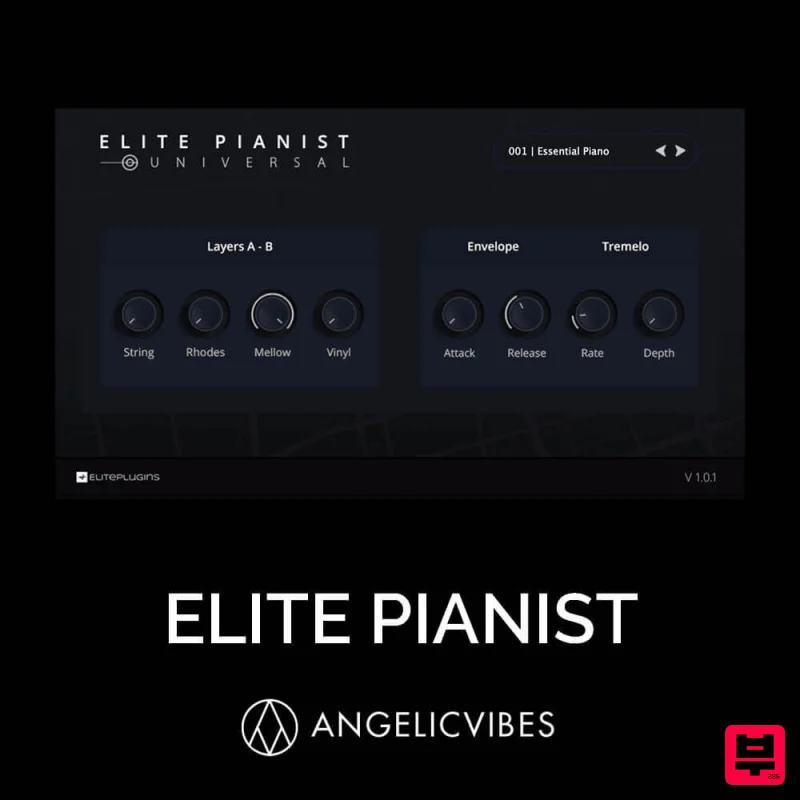
Your next go-to virtual instrument. Real piano recordings with unique sound and effects 50 high-quality presets for...
Thenatan Audio Poizen VST
Synth
$30
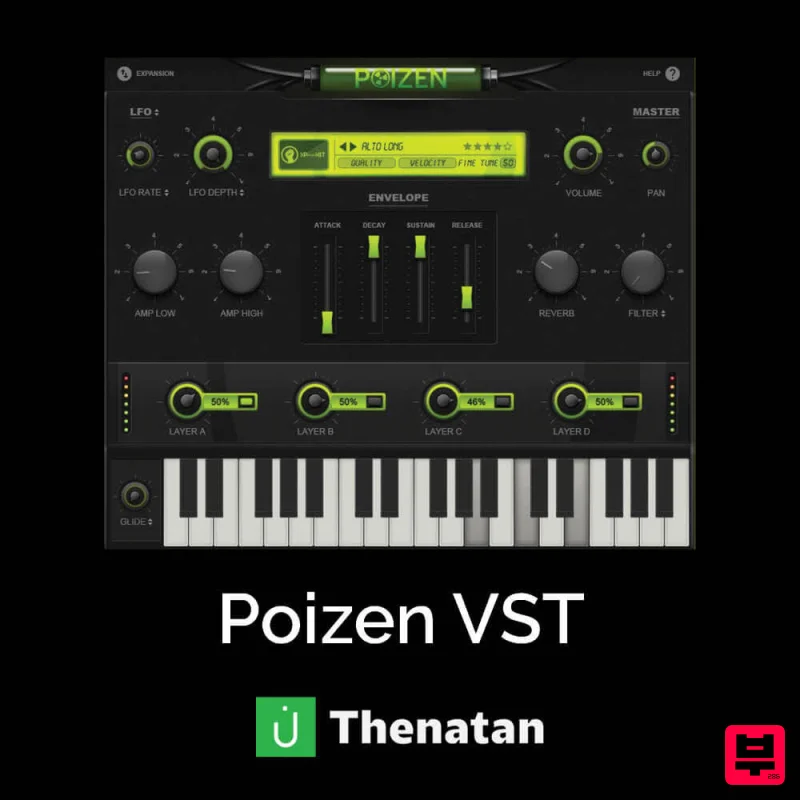
Thenatan and Global Audio Tools have teamed up again to bring music makers across the globe a jam packed powerful tool...

discoDSP OPL
Synth
$30
The OPL is a digital sound synthesis chip developed by Yamaha in the mid 1980s. Among other products, it was used in...
Reflekt Audio Xonex
Synth
$30
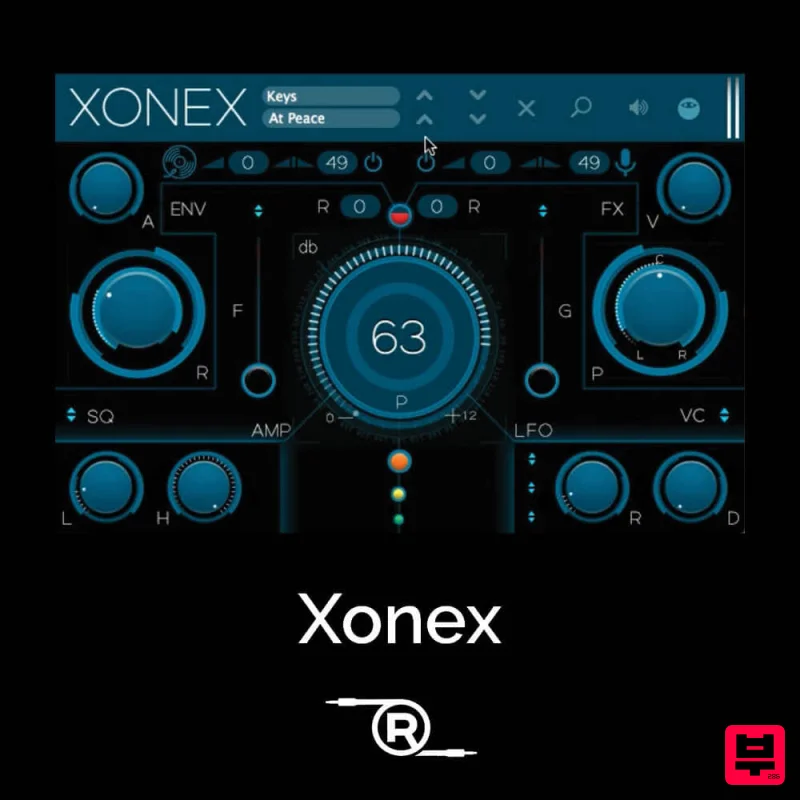
Xonex is a futuristic plugin that we have used time and time again to make a variety of beats. Xonex has offered me a...
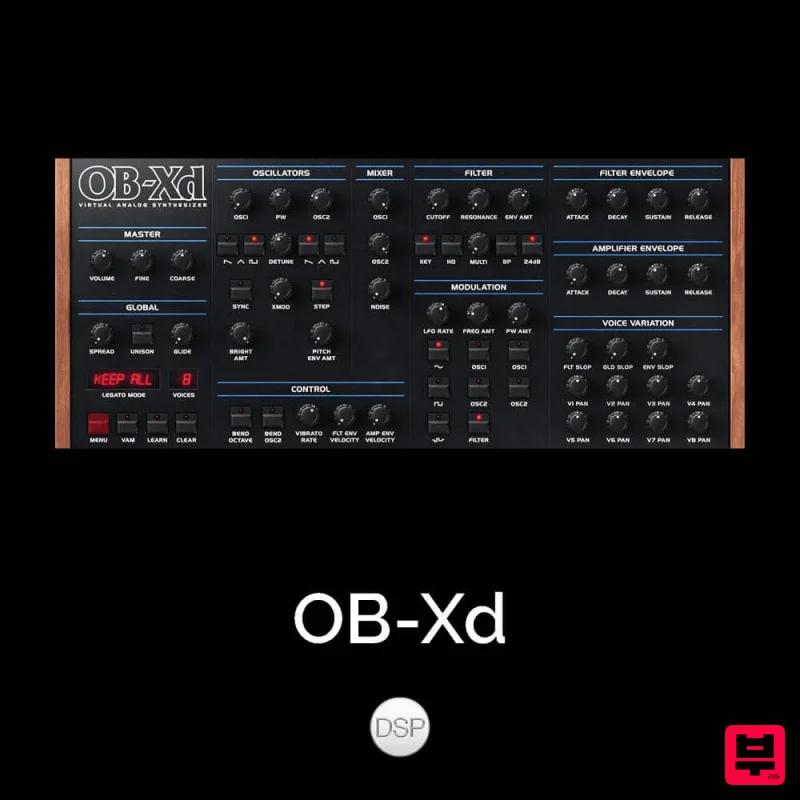
discoDSP OB-Xd
Synth
$30
OB-Xd is based on the Oberheim OB-X. It attempts to recreate its sound and behavior, but as the original was very...
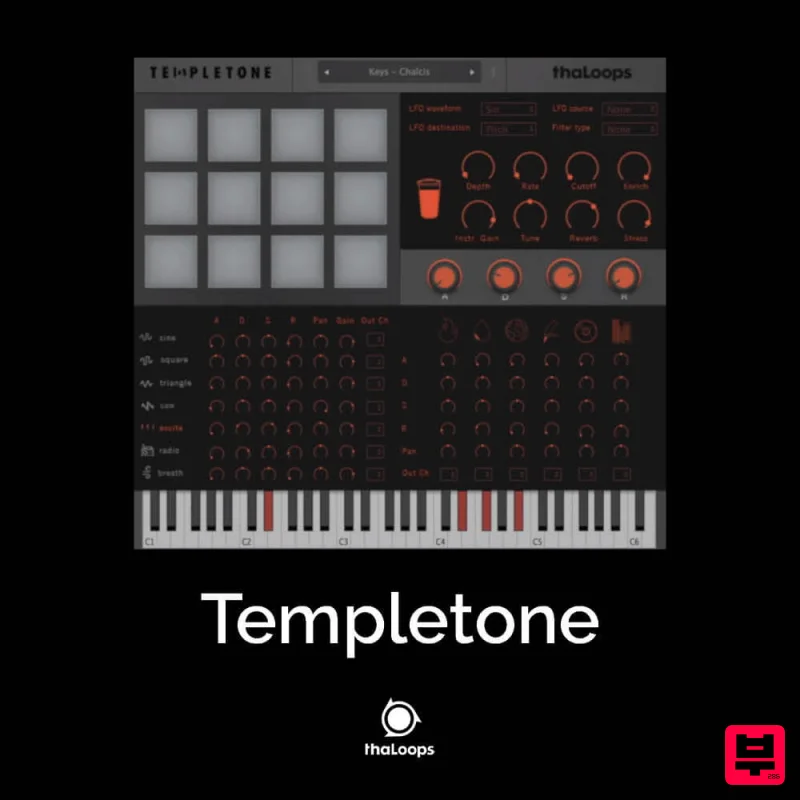
ThaLoops Templetone
Synth
$30
The Ultimate Hip-Hop Production Plugin – Featuring a Vast Collection of Hip-Hop Sounds. Choose between wild drums,...
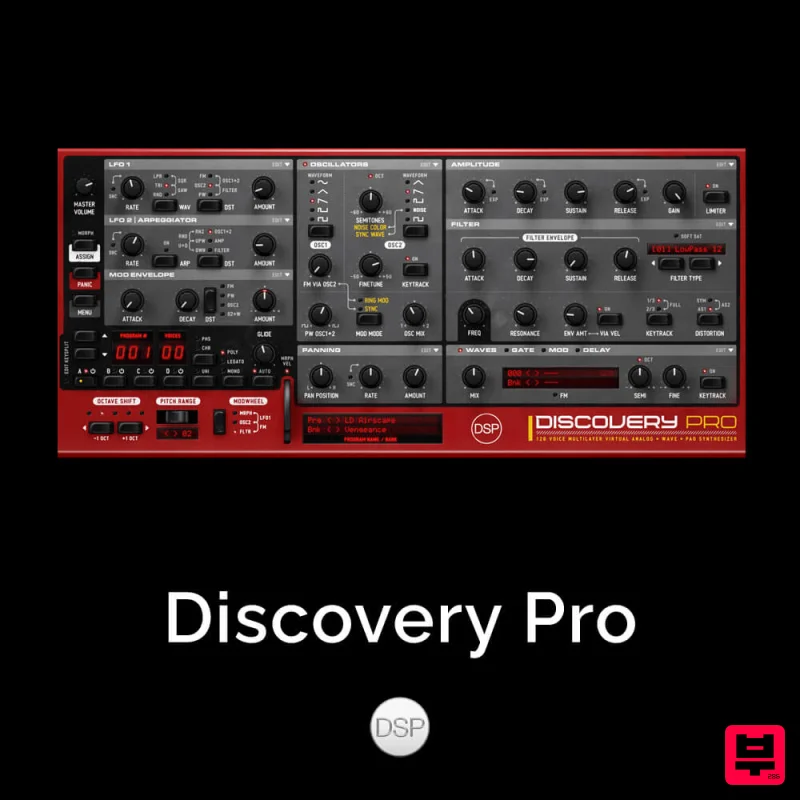
discoDSP Discovery Pro
Synth
$30
discoDSP’s Discovery was one of the company’s first and finest efforts. Heavily inspired by Clavia’s Nord Lead...
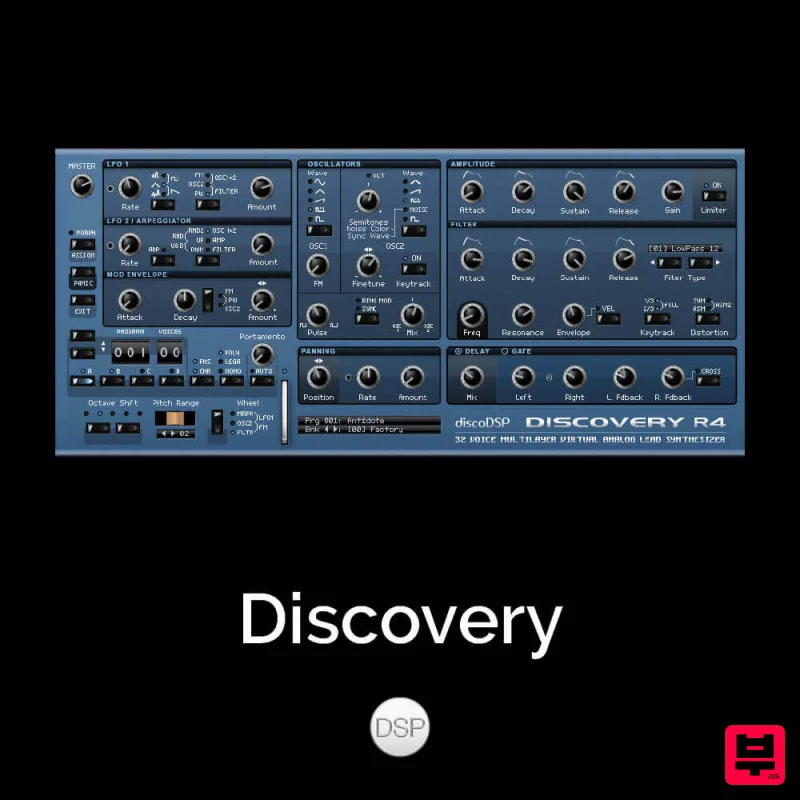
discoDSP Discovery
Synth
$30
Discovery is a virtual analog Nord Lead 2 inspired synthesizer featuring multi-layering, a morphing engine, high...
Frequently Asked Questions
The Rob Papen Blade 2 stands out for its exceptional Rob Papen craftsmanship and innovative design.
Yes! With its affordable price point and quality construction, it's perfect for learning synth.
Browse the similar products section to see how it stacks up against other synth.

