
Klevgrand GotoEQ
Professional music gear - detailed information and where to buy
Product Description
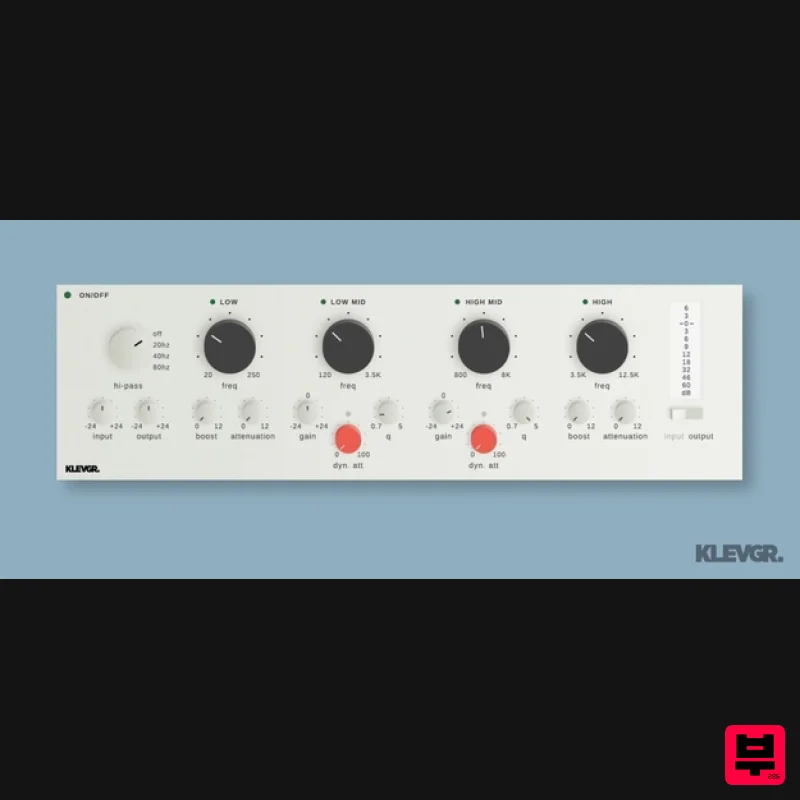
- Premium Equalizer A classic EQ unit reinvented for the digital age GotoEQ is a new evolution of a vintage passive tube-based program equalizer
- expanding on that classic sound with dynamic EQ bands. GotoEQ performs the classic ‘low-end trick’ with dual Boost and Attenuate controls for its low shelf
- but it also offers the ability to perform a 'high-end trick'
- with a similar formulation of high shelving. With continuous frequency selection
- you can tune each band as you like. But most importantly of all
- GotoEQ’s two mid bands offer dynamic attenuation
- bringing a musical approach to the classic EQ unit. Usage Simultaneously boost and cut the low shelf to create that low-mid scoop on bass tracks. De-ess vocals or de-harsh overheads by engaging dynamic attenuation and tuning the high-mid band. Add air to signals with the high shelf filter
- and ‘scoop’ the high-mids using a ‘high-end trick’. Get control over the ‘nose’ of bass tracks with dynamic attenuation of the Low Mid and High Mid bands. Subtly EQ a whole mix or bus using light settings and mild compression Anatomy 1. Prepare for treatment - To let the dynamic processors work at their best
- make sure to set the right input level. 2. Classic style filters - Two shelving filters with separate Boost & Attenuation controls. To achieve the 'Pultec' effect
- both boost and attenuation must be above 0 dB. 3. Dynamic parametric EQs - These work a bit differently than the Low & High filters – a dynamic processor attenuates the signal. Fine-tune with the gain knob. 4. Level like a boss - VU-meters for Input or Output levels. Features Low and High Shelf filters
- with detailed modelling of a classic passive EQ unit Two parametric dynamic filters High-pass filter: 20/40/80 Hz Preset library Continuous frequency selection for all four bands Boost and Attenuation for the Low and High shelving bands Gain
- and Dynamic Attenuation for the two mid bands Finely-tuned compression algorithm makes mid bands react dynamically to the signal Global Input and Output Gain controls (+/-24dB) Global bypass and individual band bypass Peak metering for the input or output System Requirements macOS 10.10 or later (optimized for the M1-processor) Windows 7 SP1 or later AU
- VST-2
- VST-3
- AAX Please Note: Pana is used as the example: Mac License Redemption 1. Navigate to https://klevgrand.com/redeem > Paste your 16 digit redemption code found in your Plugin Boutique User Account > Click 'Submit!'. 2. Your redemption code has been accepted > Scroll down to Step 2. 3. Click either 'Sign in' if you already have a Klevgrand account
- or 'Create new account' if you do not > Fill in your personal details > Click 'I'm ready'. 4. Your account has now been created. 5. Navigate to your email inbox and locate the activation email that you should have received from Klevgrand > Click 'Let me in!' to activate your account. 6. Create a password for your account > Click 'Enter Klevgrand'. 7. Your software and serial number is now available within your Klevgrand account > Click the Apple logo to download the installer file. Installation 1. Launch the pana_x_x_x_macOS.dmg installer file. 2. Double click the KLEVGR. logo to launch the installer. 3. Click 'Continue'. 4. Click 'Continue'. 5. Click 'Agree'. 6. Click 'Install'. 7. Enter your system password > Click 'Install Software'. 8. Click 'Close'. 9. Navigate back to your Klevgrand My Account page > Click on the serial number to copy it to your clipboard. 10. Launch your DAW > Create a new audio track > Insert Pana onto the channel > Paste your serial number into the box. Your software is now activated and ready to use within your DAW Windows License Redemption 1. Navigate to https: //klevgrand.com/redeem > Paste your 16 digit redemption code found in your Plugin Boutique User Account > Click 'Submit!'. 2. Your redemption code has been accepted > Scroll down to Step 2. 3. Click either 'Sign in' if you already have a Klevgrand account
- or 'Create new account' if you do not > Fill in your personal details > Click 'I'm ready'. 4. Your account has now been created. 5. Navigate to your email inbox and locate the activation email that you should have received from Klevgrand > Click 'Let me in!' to activate your account. 6. Create a password for your account > Click 'Enter Klevgrand'. 7. Your software and serial number is now available within your Klevgrand account > Click the Windows logo to download the installer file. Installation 1. Unpack the pana_x_x_x_win.zip installer file > Launch the pana_x_x_x_win.exe file. 2. Click 'I accept the agreement' > Click 'Next'. 3. Click 'Next'. 4. Click 'Next'. 5. Click 'Next'. 6. Click 'Install'. 7. Click 'Finish'. 8. Navigate back to your Klevgrand My Account page > Click on the serial number to copy it to your clipboard. 9. Launch your DAW > Create a new audio track > Insert Pana onto the channel > Paste your serial number into the box. Your software is now activated and ready to use within your DAW
Additional Information
About the Klevgrand GotoEQ
Experience the quality and tone that makes the Klevgrand GotoEQ a popular choice for musicians.
Why Choose the Klevgrand GotoEQ?
- •Authentic Klevgrand craftsmanship and design
- •Versatile sound suitable for multiple musical genres
- •Professional build quality and reliable performance
- •Part of Klevgrand's respected EQ lineup
Compare & Explore
Browse our complete selection of Klevgrand instruments or explore other EQ options. Use our comparison tools to find the perfect match for your musical style and budget.
Similar Products
Rave Generation TubEQ
EQ
$42
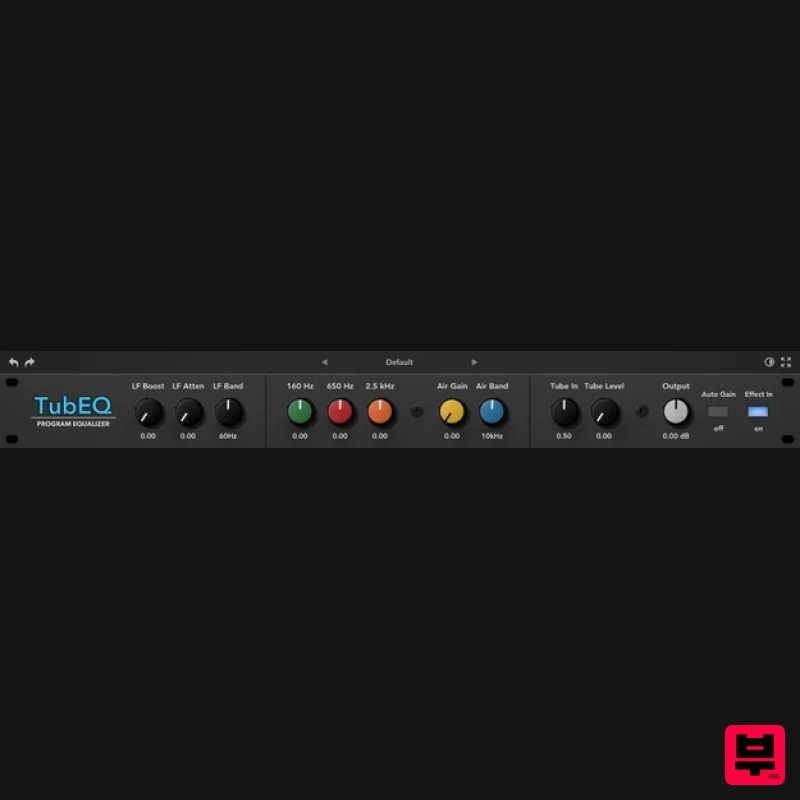
TubEQ is an authentic analog equalizer plugin that combines the musical character of two legendary EQs in a single...
Slate Digital SD-PE1
EQ
$104
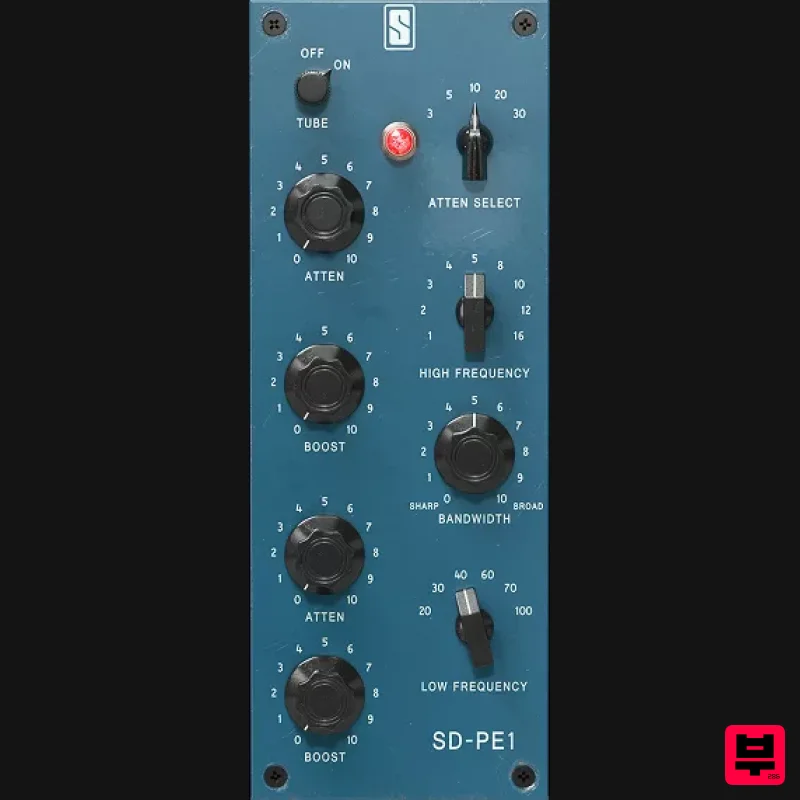
Meet SD-PE1! The most unique passive equalizer ever made joins the ever-expanding lineup of processors that make up the...
TBProAudio sTiltV2
EQ
Free
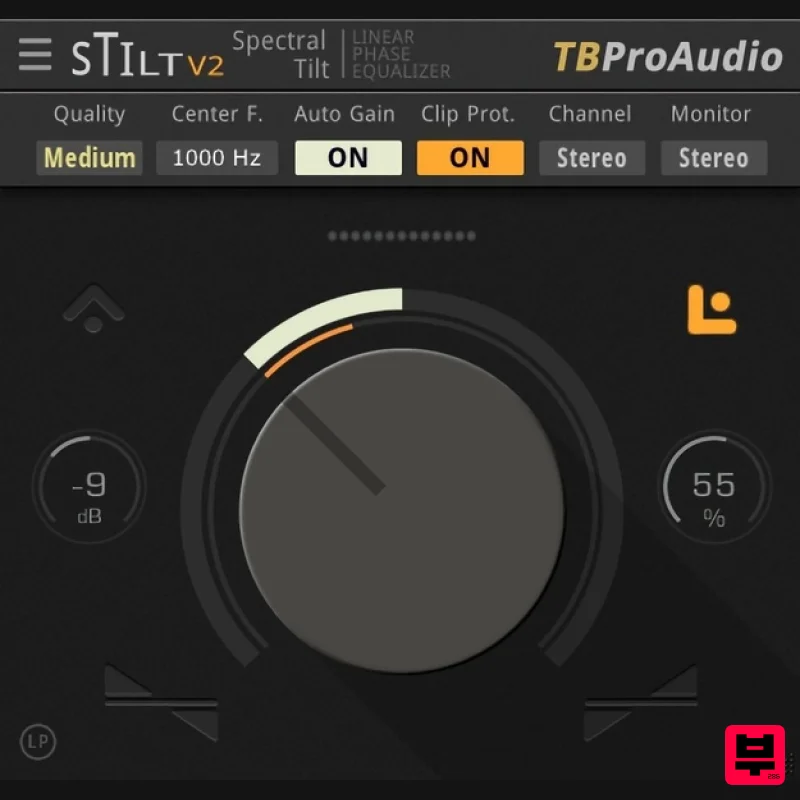
sTilt is a linear/minimum phase and IIR filter which tilts the audio spectrum around a given center frequency. Features...
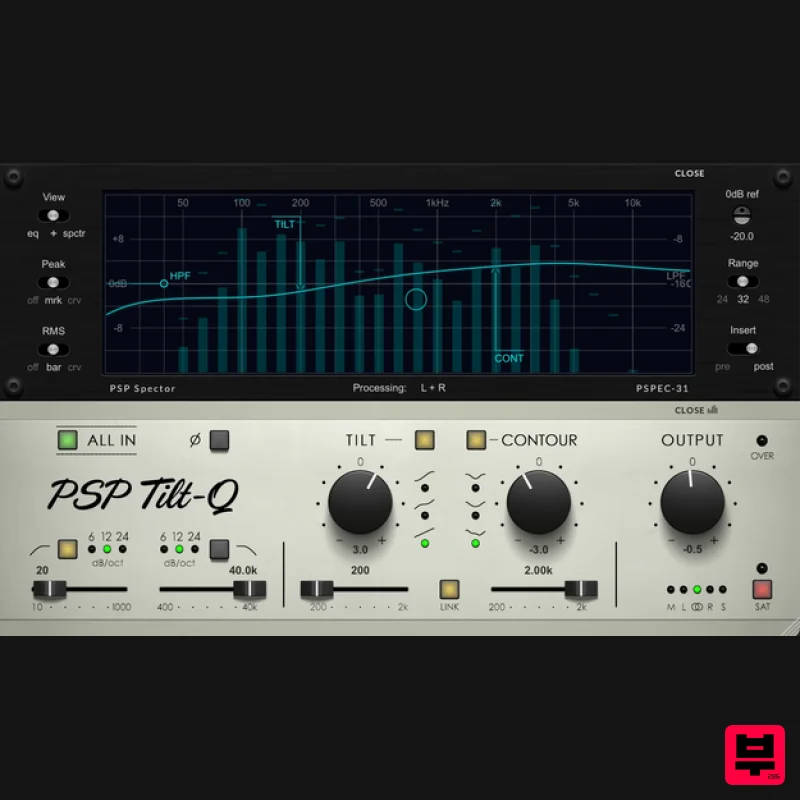
PSP Audioware PSP Tilt-Q
EQ
$72
Tilt Equalizer with Three Characteristics Musical tilt EQ offering three distinct curve shapes, allowing you to quickly...
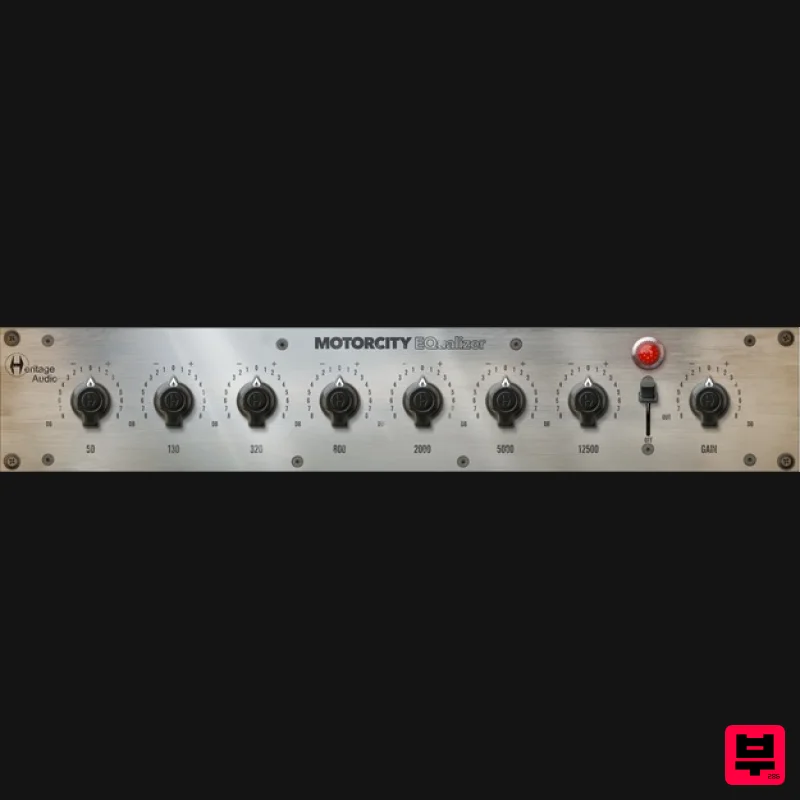
Heritage Audio MOTORCITY EQ
EQ
$104
The classiest EQ ever created finally gets the thorough plugin treatment it so long deserved Recreated from the...
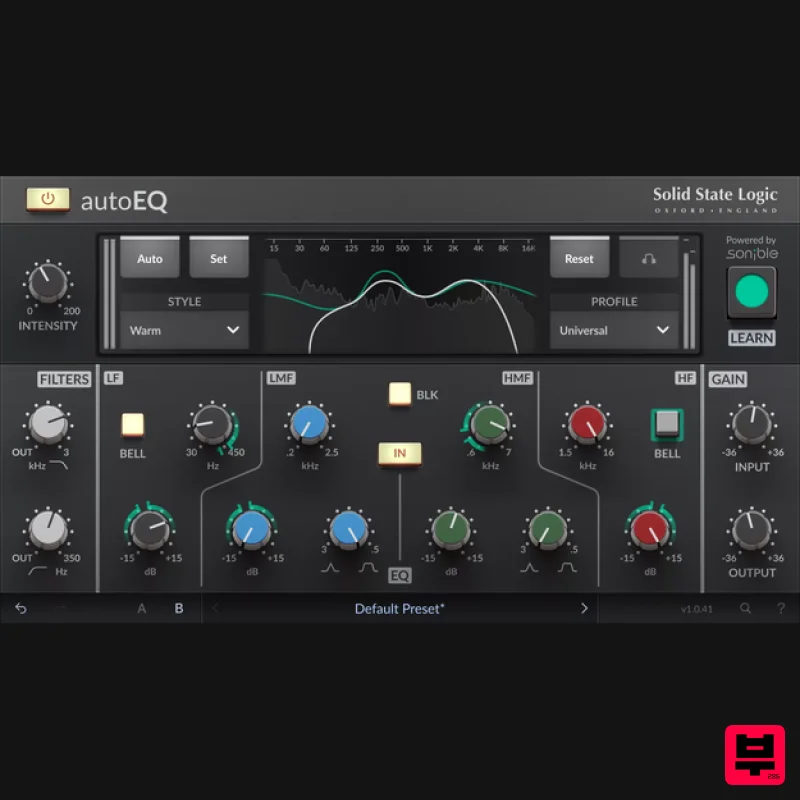
Solid State Logic SSL autoEQ
EQ
$109
SSL 4000E EQ processing with sonible AI assisted analysis Introducing autoEQ, part of the autoSeries with autoDYN and...
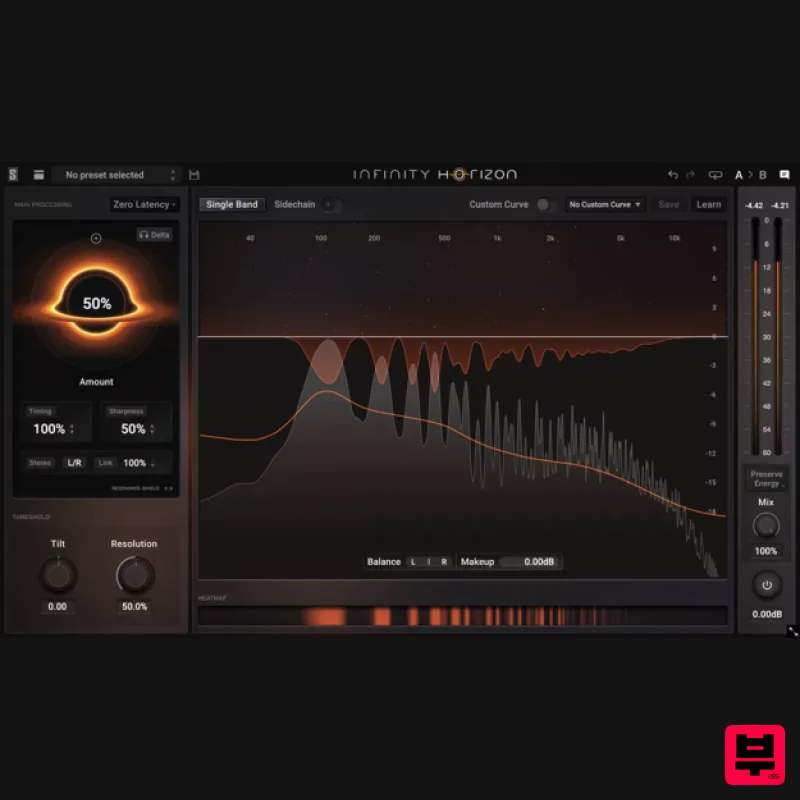
Slate Digital Infinity Horizon
EQ
$156
Rogue Frequencies Cannot Escape Infinity Horizon finds harsh frequency build ups and them in real time. If you're...
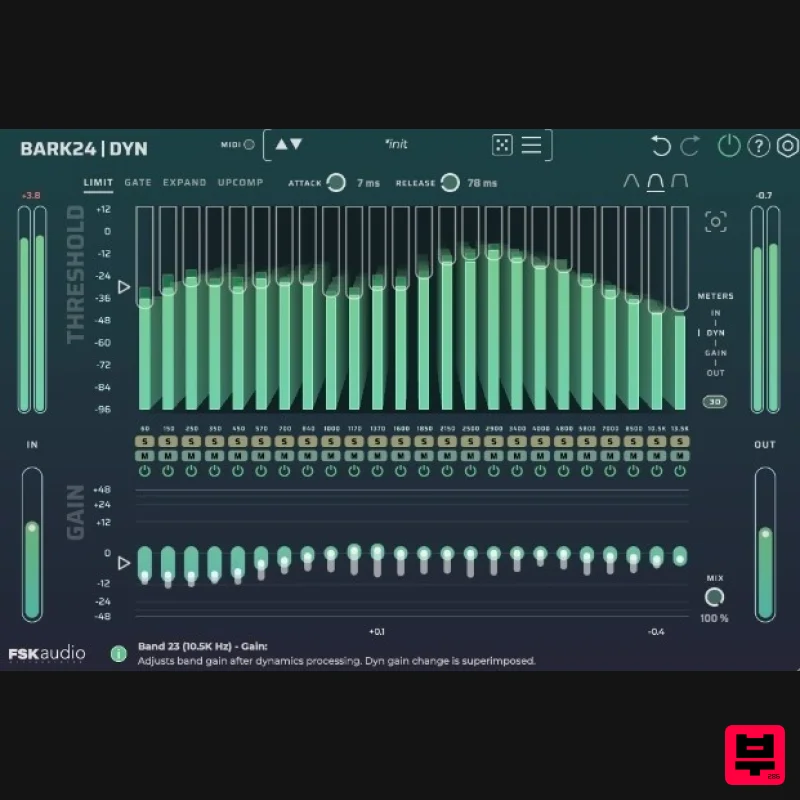
FSK Audio Bark24 | Dyn
EQ
$120
Bark24 | Dyn is a dynamic EQ that takes you far beyond a standard compressor or EQ. Based on the Bark scale - a model...
Frequently Asked Questions
The Klevgrand GotoEQ stands out for its exceptional Klevgrand craftsmanship and innovative design.
Yes! With its affordable price point and quality construction, it's perfect for learning eq.
Browse the similar products section to see how it stacks up against other eq.

